

Appearance
Clean Request Approvals
When a clean request is flagged as a potential duplicate, it is sent for approval rather than being created immediately. The Clean Request Approvals page is where those requests are reviewed and either approved or rejected.
It is available in both the Customer Portal and the Manager Portal and works identically in both.
If you do not see Request Approvals in the sidebar, your role will need ReadDuplicateRequests or ManageDuplicateRequests configured.
Permissions
ReadDuplicateRequests- View the approvals list and request details.ManageDuplicateRequests- Approve and reject requests. Without this, the pages are read-only.
Searching for Approvals
Navigate to Clean Requests > Request Approvals from the sidebar.

The search form has two filters:
Customer- Multi-select list of your accessible customer codes.Status- Multi-select. Options areNew,Rejected, andAuthorised. Defaults toNew.
Click Search to run the query. Click Clear Filter to reset back to the defaults.

Results show Status, Date Time Required, Department, Operation Code, Vehicle Identifier, and Issue.
TIP
Search criteria are saved in your browser session. If you navigate away and come back, your last search will be restored automatically.
Approving and Rejecting
TIP
To approve or reject requests, you need ManageDuplicateRequests in your role.
You can act on requests directly from the search results grid or by opening the detail view.
From the Grid
Each row has three actions:
- View - Opens the request detail page.
- Approve - Approves the request after confirmation.
- Reject - Rejects the request after confirmation.
A confirmation dialog will appear for both actions before anything is submitted.

Bulk Actions
Select two or more rows to reveal the bulk action buttons at the top of the grid.
- Bulk Approve - Approves all selected requests.
- Bulk Reject - Rejects all selected requests.
A confirmation dialog shows how many requests will be affected before submitting.

From the Detail View
Click View on any row to open the full request details. All fields are read-only.
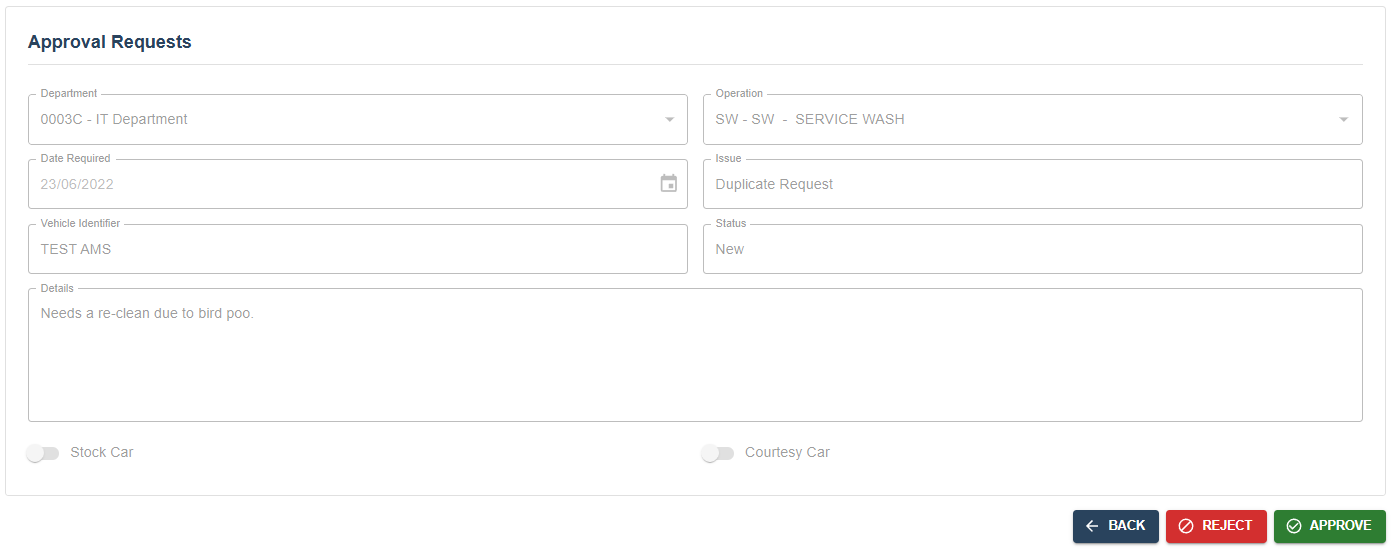
Fields shown include Department, Operation, Date Required, Issue, Vehicle Identifier, Status, Details, Stock Car, and Courtesy Car.
If the request is still New, Approve and Reject buttons are shown at the bottom. Both require confirmation before submitting.
After approving or rejecting, you are returned to the approvals list.
Read-Only Access
If your role does not include ManageDuplicateRequests, the approve and reject actions will not be shown and a read-only message will be displayed in their place.