Appearance
Shift Requests
The Shift Requests section of the Customer Portal lets you raise and manage weekly shift schedules for your departments. Each request covers a full week and is made up of individual shifts per day, specifying the operation, start and end times, and how many operatives are needed.
A department budget must be set for the selected week before a shift request can be created. See Department Budgets for details.
If you do not see Shift Requests in the sidebar, your role will need ReadShiftRequests or ManageShiftRequests configured.
Permissions
ReadShiftRequests- View and search shift requests.ManageShiftRequests- Create shift requests and add shifts. Without this, the pages are read-only.
Searching for Requests
Navigate to Shift Requests from the sidebar.

The search form includes the following filters:
Customer- Multi-select list of your accessible customer codes.Week Ending- A week picker. Required before searching.
Click Search to run the query. Click Clear Filter to reset everything back to the defaults.

Results show Code, Department Name, and Week Ending.
TIP
Search criteria are saved in your browser session. If you navigate away and come back, your last search will be restored automatically.
Each row has two actions:
- Detail - Opens the shift request.
- Copy - Creates a new request pre-filled with the days and operations from this one, with a blank week. Requires
ManageShiftRequests.
Creating a Request
TIP
To create shift requests, you need ManageShiftRequests in your role.
Click Create on the search page to open a blank form.
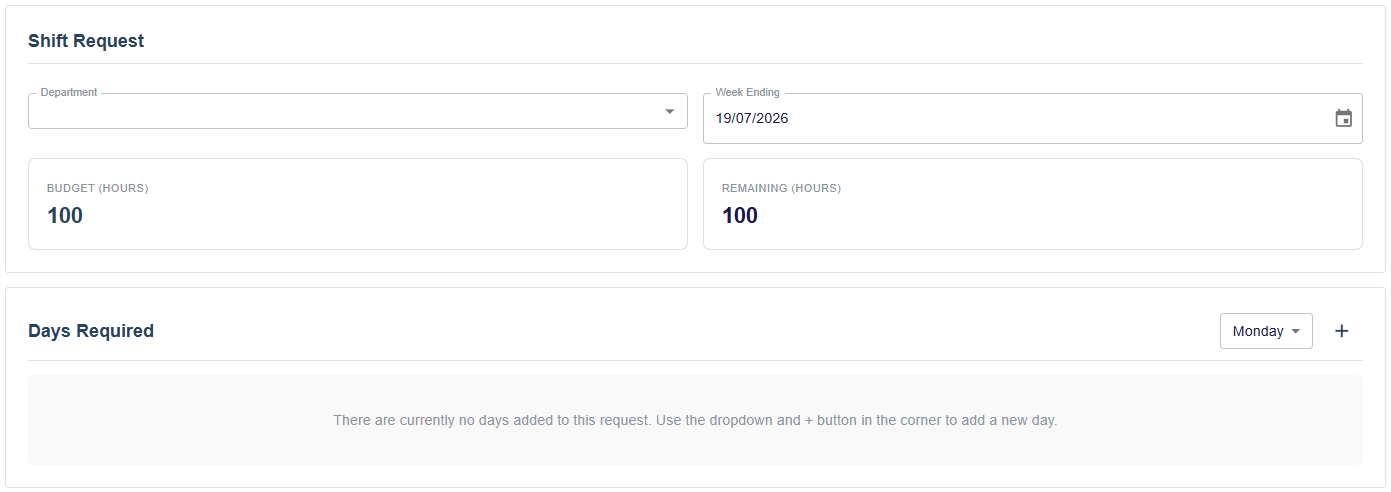
Department and Week Ending
Select the department and the week ending date. Both are required and cannot be changed after the request is saved.
Once both are selected, the system checks for a budget for that department and week. If no budget has been set, a message will appear and you will not be able to add shifts until one is created. See Department Budgets.
If a shift request already exists for the same department and week, a duplicate warning will appear.
Budget Summary
When a valid budget is found, two summary cards are shown below the department and week fields:
- Budget (hours) - The total hours budgeted for the week.
- Remaining (hours) - Budget minus the total hours of all shifts currently added. Shown in red if it goes negative.
Adding Shifts
Once a valid budget is confirmed, the Days Required section appears.
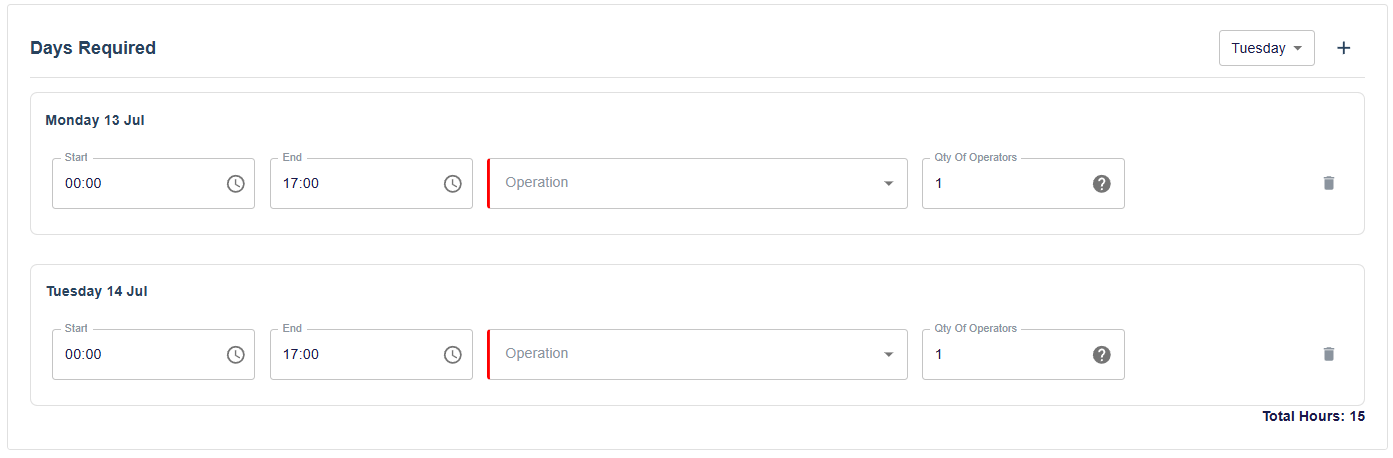
Use the day dropdown and the + button in the top right of the section to add a shift for a specific day. You cannot add shifts for days that have already passed.
Each shift row contains:
Start- The start time of the shift.End- The end time of the shift. Hours and break are calculated automatically from the start and end times.Operation- The operation code for the shift. Required. Locked after the request is saved.Qty of Operators- How many operatives are needed for this shift. The tooltip shows the calculated hours and break per operative.- Delete button - Removes the shift from the request.
Shifts on past days are shown dimmed and cannot be edited.
The total hours across all shifts is shown at the bottom of the section.
WARNING
If the total requested hours exceed the budget, an error is shown and the Save button is disabled until the hours are brought within budget.
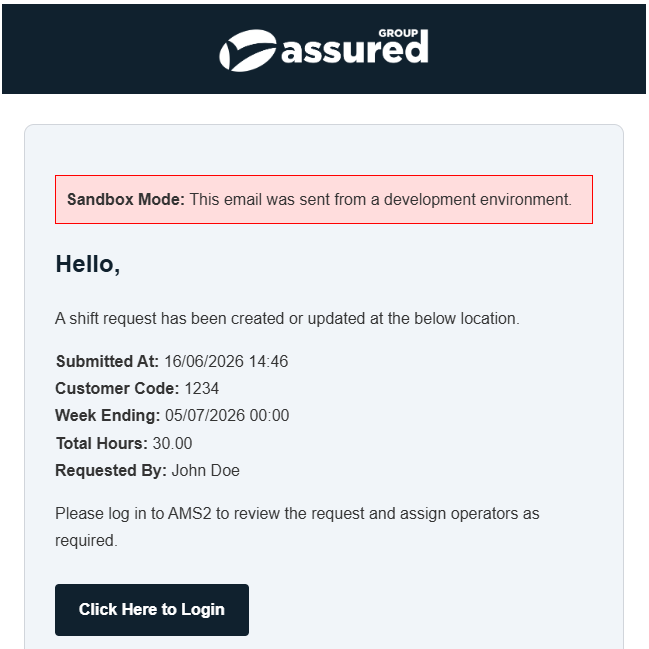
Once you are happy, click Save. After saving, you will be taken to the manage page for the newly created request. An email notification is sent to the Assured manager for your site when the request is saved.
Editing a Request
Click Detail on any search result row to open an existing request.
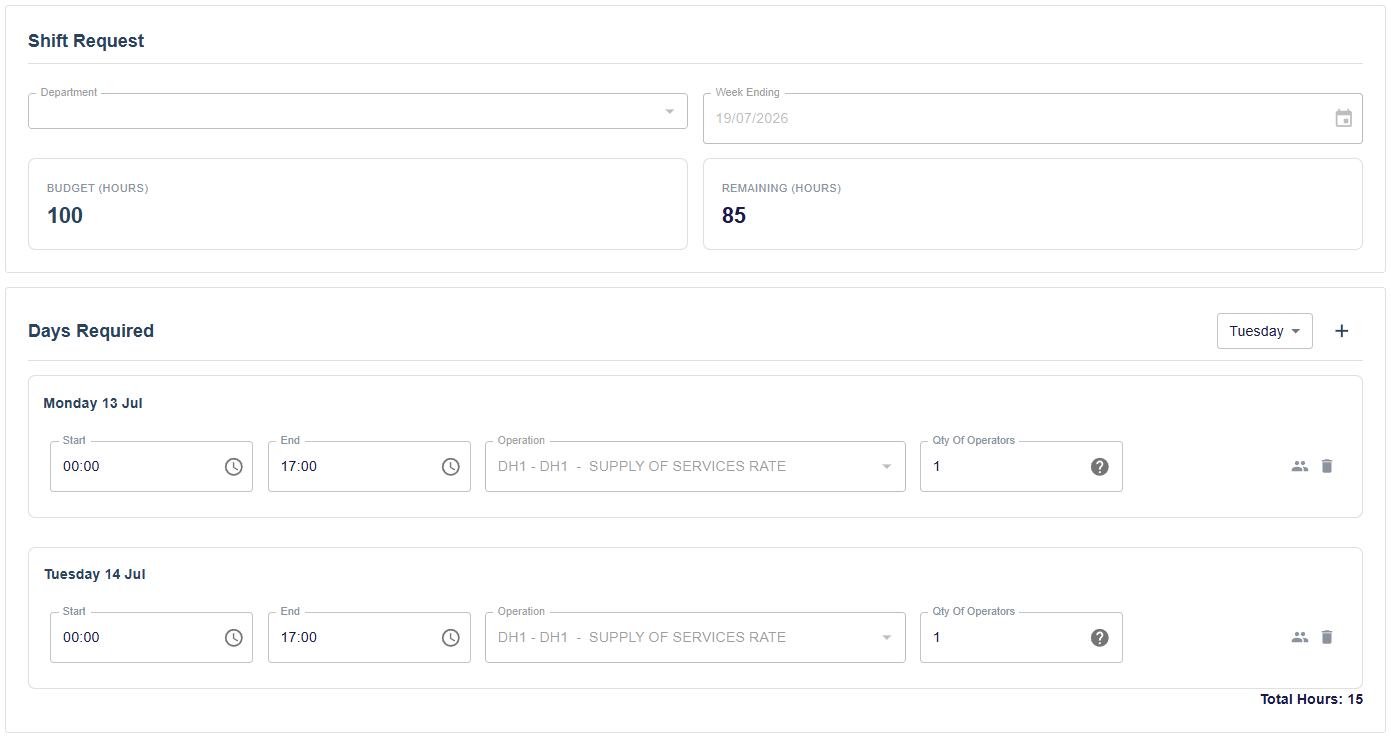
The department and week fields are locked. You can still add shifts for future days and edit or remove existing shifts for future days. Past days are displayed but cannot be changed. The Assured manager for your site is notified by email whenever changes are saved.
Assigning Operatives
Operator assignment is handled by Assured managers, not customer users. Once all operator slots on a saved shift have been filled, a people icon appears on that row so you can view who has been assigned.
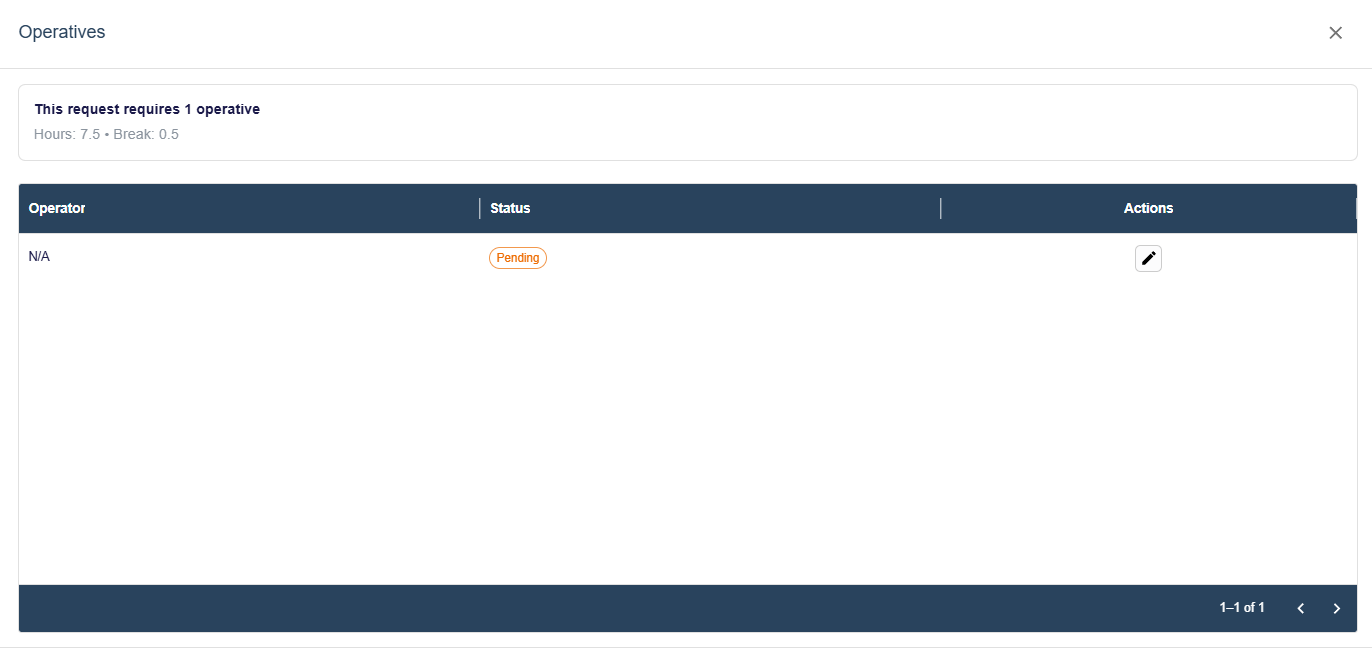
The panel shows each operative slot with their name, operator code, and current status:
Accepted- The operative has accepted the shift.Awaiting Approval- The operative has been assigned and is pending confirmation.Pending- Not yet assigned.Rejected- The operative declined.
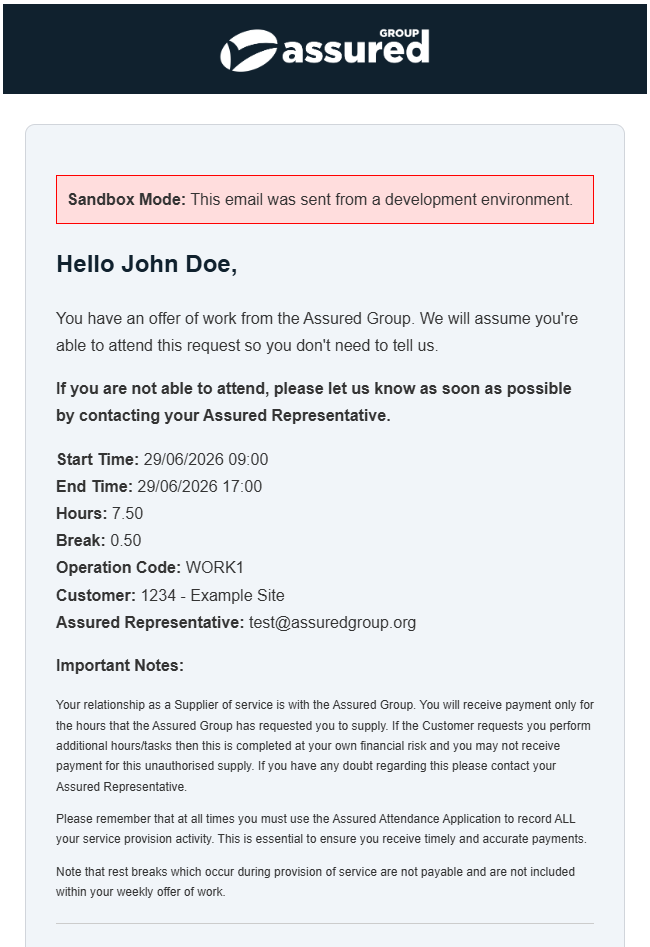
When an operative is assigned, they are automatically marked as Accepted and sent a notification email confirming their shift details.