

Appearance
Clocked Hours
The Clocked Hours section of the Customer Portal lets you search and view clocking records for operatives across your assigned sites. Records include clock-in and clock-out times, hours worked, break duration, and facial recognition photo verifications.
If you do not see Clocked Hours in the sidebar, your role will need ReadClockedHours configured.
Permissions
ReadClockedHours- View clocked hours records and detail pages.ViewClockedHoursPhotos- View facial recognition photo verifications on the detail page.
Searching for Records
Navigate to Clocked Hours from the sidebar.
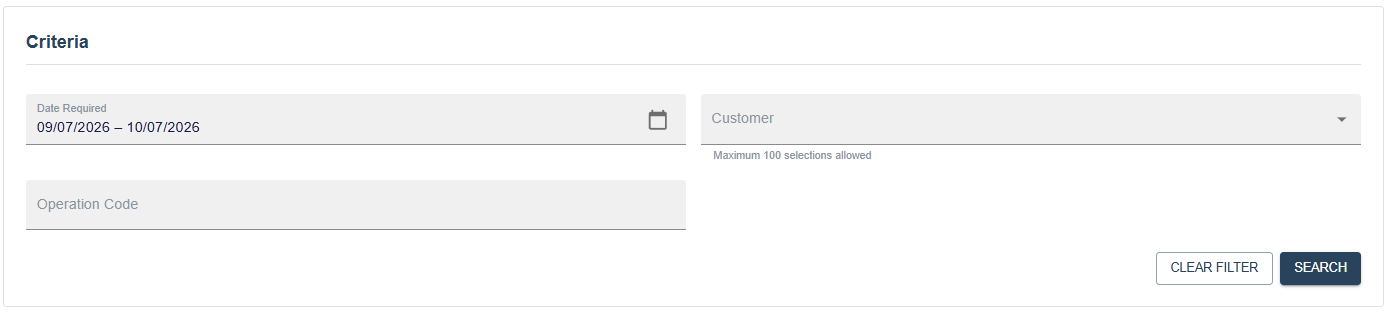
The search form includes the following filters:
Date Required- A date range selector. Required before searching. Defaults to yesterday through today.Customer- Multi-select list of your accessible customer codes.Operation Code- Optional free text filter. Press Enter to trigger the search.
The Search button is disabled until a valid date range is entered. Click Clear Filter to reset everything back to the defaults.

Results show Department, Operation, Operator Code, Operator Name, and Clocked Hours.
TIP
Search criteria are saved in your browser session. If you navigate away and come back, your last search will be restored automatically.
Click Detail on any row to open the full clocking breakdown for that operative.
Detail View
The detail page shows every individual clocking event for the selected operative within the searched date range.

| Column | Description |
|---|---|
| Clocked In | Date and time the operative clocked in |
| Clocked Out | Date and time the operative clocked out, or - if still clocked in |
| Hours | Total hours for that clocking event |
| Break | Break duration in hours |
| Department | Site the operative clocked in at |
| Operation Code | Operation carried out |
| Auto Clock Out | Whether the system automatically clocked the operative out |
Click Back to return to the search results.
Photo Verifications
TIP
To view photo verifications, you need ViewClockedHoursPhotos in your role.
Where facial recognition is enabled, each clocking event may have photo verification data attached. Select Photo on any row to view the verification photos for that event, or click All Photos in the header to view all photos for the operative at once.
Each verification shows a side-by-side comparison of the target photo and the source photo captured at the time of clocking, along with a match score.
- A green border indicates the photos matched.
- A red border indicates the photos did not match.
WARNING
Clocking events where the photos did not match are automatically flagged and sent to the site's Assured managers for review.