

Appearance
Audits
The touchscreen allows the ability to complete Audits.
The accident screen is visible at the Auidits tab. If you do not see this, you will need to enable Touchscreen Allow Audits inside the users role.
Inside the users role, there is also a Audits section, only audits linked to the users role will display at the touchscreen.
Starting an audit
- To start an audit, you can select the
Startbutton next to the desired Audit.
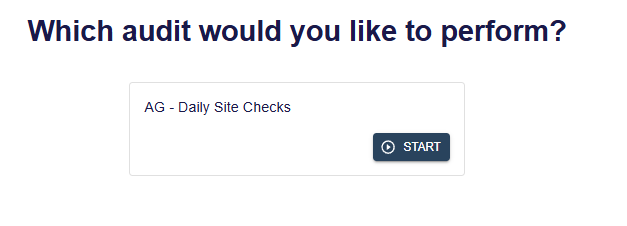
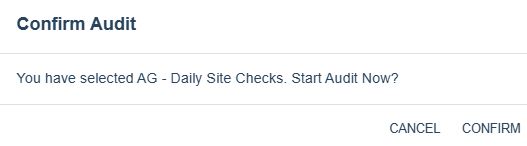
- Once a audit has been selected, a confirmation dialog will appear to confirm the selected action.
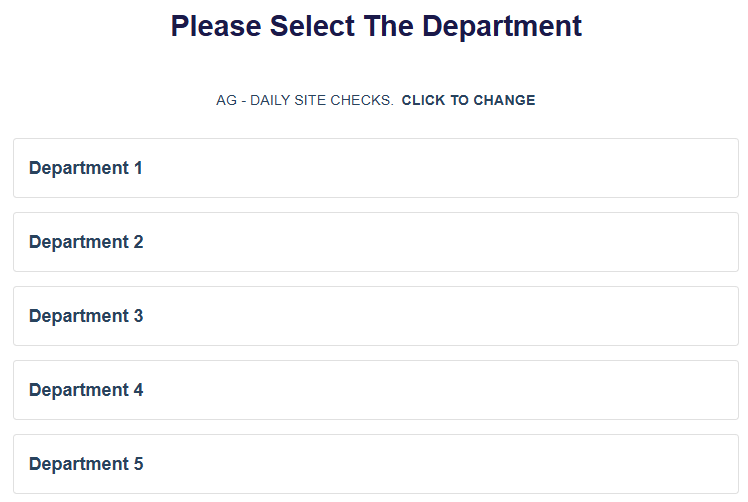
- Once started, you will need to select which department this audit is taking place.
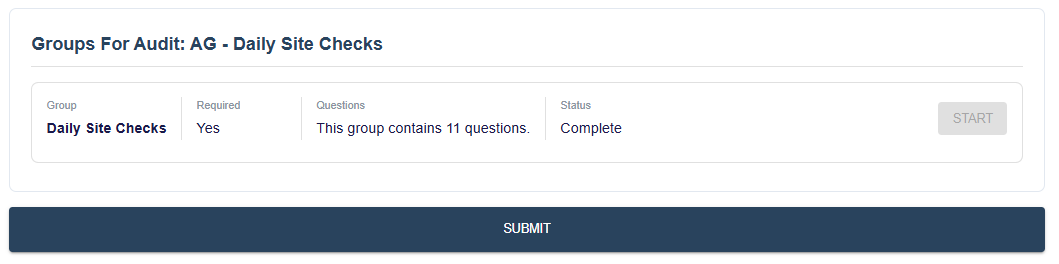
- Once a department is selected, you will be shown a list of groups for this audit. You will not be able to submit the audit until all mandatory groups have been completed.
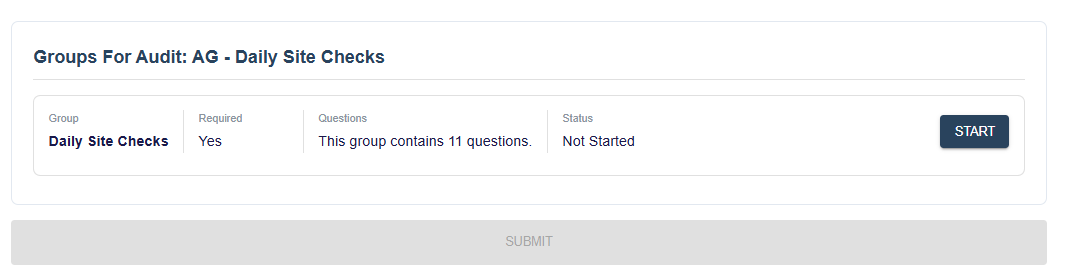
- To start a group, click
Startand then each question in that group will be presented to you.
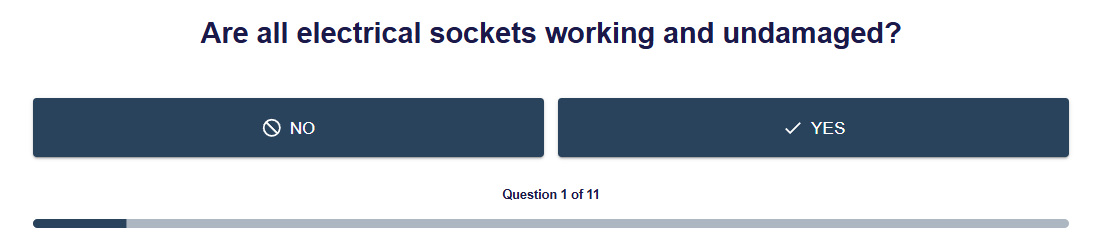
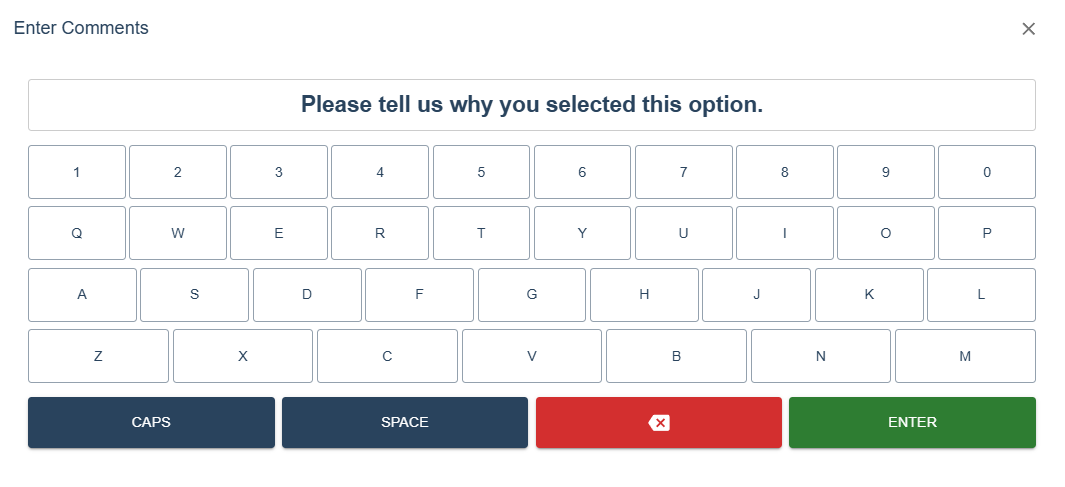
- If a question has comments set to Mandatory, or if you selected
No, a comments dialog will appear.
TIP
Comments can be Optional, Mandatory or Mandatory on Fail as setup in the legacy system.
- Once all questions in a group have been answered you will be back to the list of groups and the selected group we completed will now be greyed out. Once all stages are complete the
Submitbutton will unlock.
- If the Audit was submitted without issue, a confirmation screen will display.
