

Appearance
Presets
Presets let you save the current state of a report grid and reload it later. Everything about how the grid is arranged is captured - column order and visibility, sort order, row grouping, pivot configuration, and aggregations - so you can get straight to the view you need without setting it up from scratch each time.
Presets are per-report. Each report has its own list of saved presets.
Creating a Preset
- Run a report and arrange the grid how you want it - apply any grouping, sorting, column changes, or pivots.
- Click the
Presetsbutton in the report header. - Enter a name for the preset in the
Preset Namefield. - Click
Create Preset.
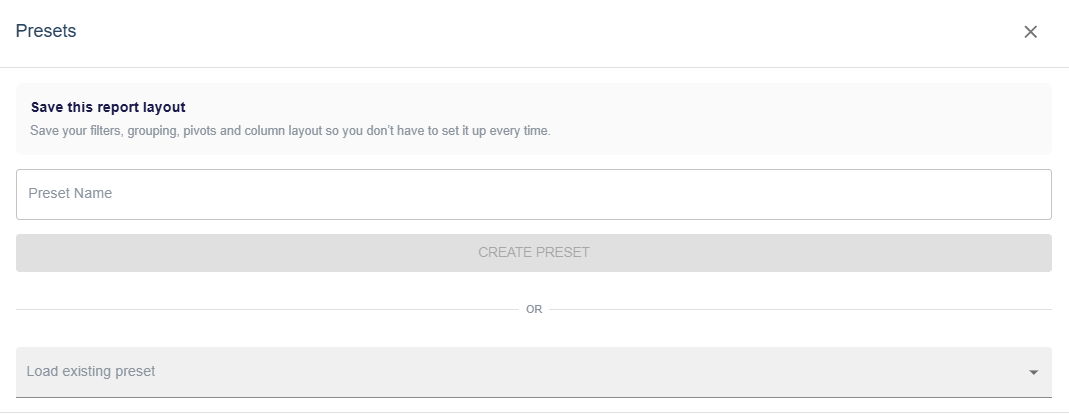
The preset is saved and automatically becomes the active preset for this session.
Loading a Preset
There are two ways to load a preset:
From the criteria section - Select a preset from the Preset dropdown before running the report. The layout will be applied when the report loads.
From the Presets dialog - Click Presets, then use the Load existing preset dropdown to pick one.
Once a preset is active, the Presets button changes to Presets (Active) and is highlighted in green.

Updating a Preset
If an existing preset is active and you want to update it with your current grid layout:
- Make your changes to the grid.
- Click
Presets (Active). - Click
Save Changes.
This overwrites the saved preset with the current state.
Resetting to Default
To clear the active preset and return the grid to its default state:
- Click
Presets (Active). - Click
Reset to Default.
The grid reverts to how it looked before the preset was applied. The preset itself is not deleted.