

Appearance
Operations
The new touchscreen allows Operators to start Operations as required.
The cleans screens are visible at the Operations tab. If you do not see this, you will need to enable Touchscreen Allow Default Operations inside the users role.
TIP
Only Operations set as IsDefault are shown in this screen. Both a maxium or unlimited defaults are supported.
Search Screen
- The search screen lists all the defaults for the signed in site.

TIP
Operators are now restricted to 1 operation per day, unless the OperationCode is a type of Overtime (OTR).
- Operations that have reached the limit still display, but have the start button disabled.

Starting An Operation
- Operations can be started by clicking the
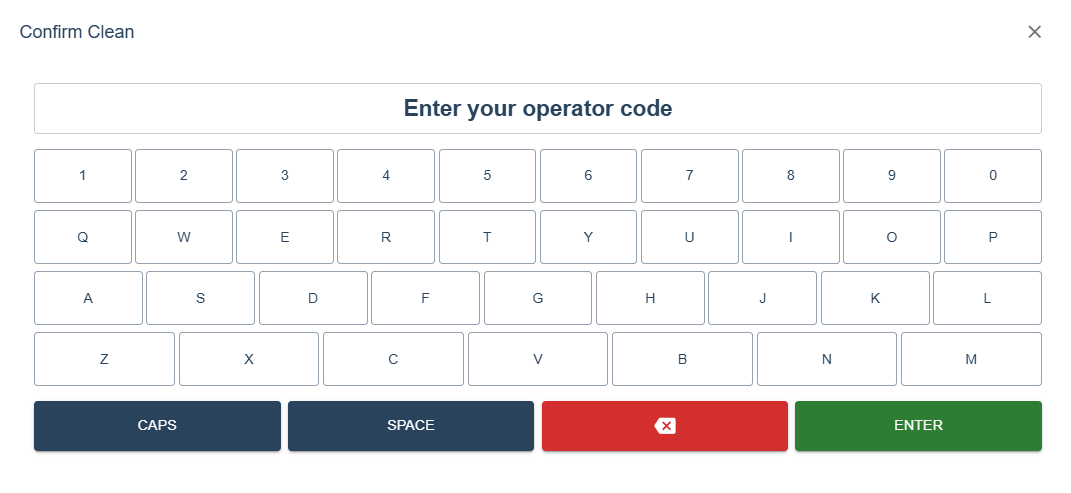
Startbutton. Once clicked, a dialog will appear asking for the Operator code.
INFO
Possible error codes:
- Please provide an operator code.
- An operator with the code 'X' was not found.
- You're not clocked in, please clock in.
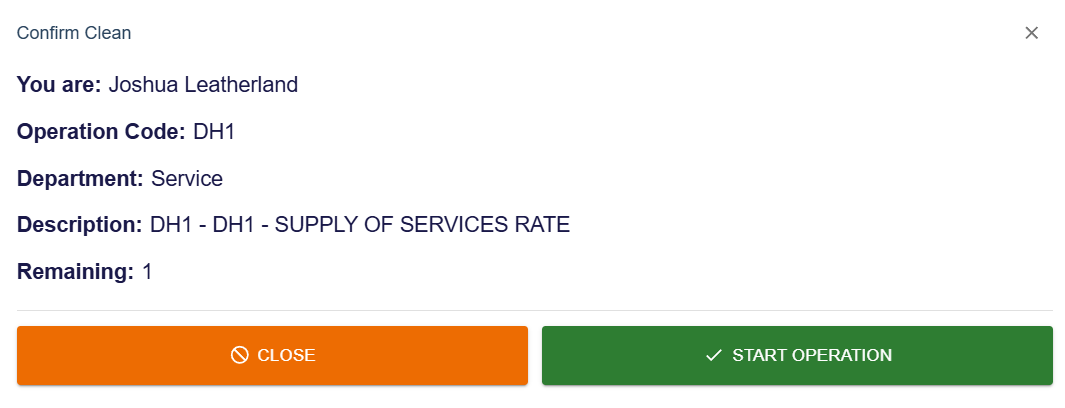
- Once a valid Operator has been inputted, a screen will appear which will display all the information relating to this operation.
- If
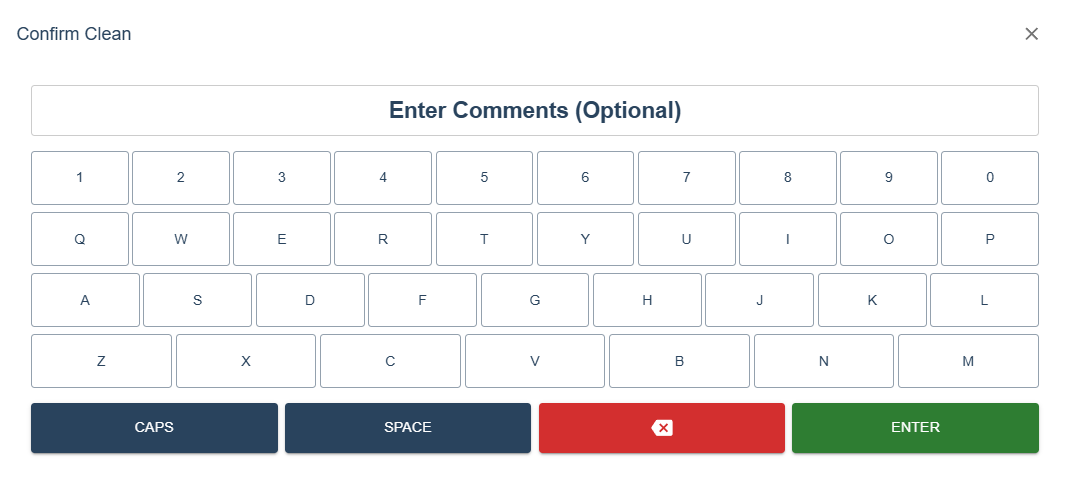
Start Operationis clicked, a screen will appear where you can enter a comment relating to the operation. This is optional but a common comment would be the day it was carried out, e.g "Tuesday"
TIP
Operations on this platform now automatically complete, so you no longer need to do this manually.
INFO
Possible error codes:
- The maximum requests for this operation have already been used for this week.
- You already have a clean in progress, please finish that first.
- You have already completed an operation today and must wait until tomorrow to start another.
- If the Operation was started and completed without issue, a confirmation screen will display.
