Appearance
Clocking
The new touchscreen allows Operators to clock in and record the hours.
The clocking system is visible at the Clocking tab. If you do not see this, you will need to enable Touchscreen Allow Clocking inside the users role.
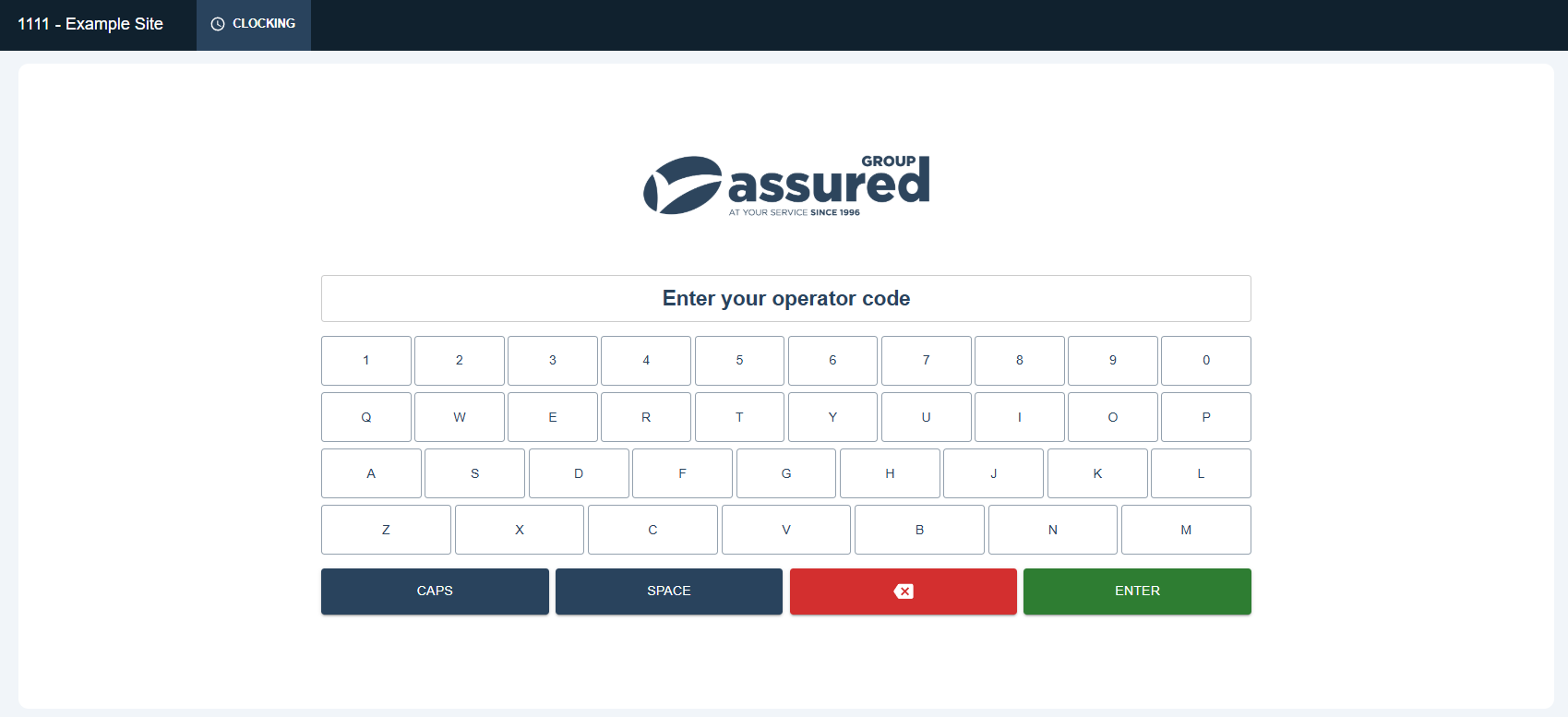
- The initial screen displayed will be a keypad where you can enter the Operators Operator Code.
INFO
Possible error codes:
- Please provide an operator code.
- An operator with the code 'X' was not found.
- Once a valid operator has been entered, the operators name will be displayed to confirm the correct code was inputted.
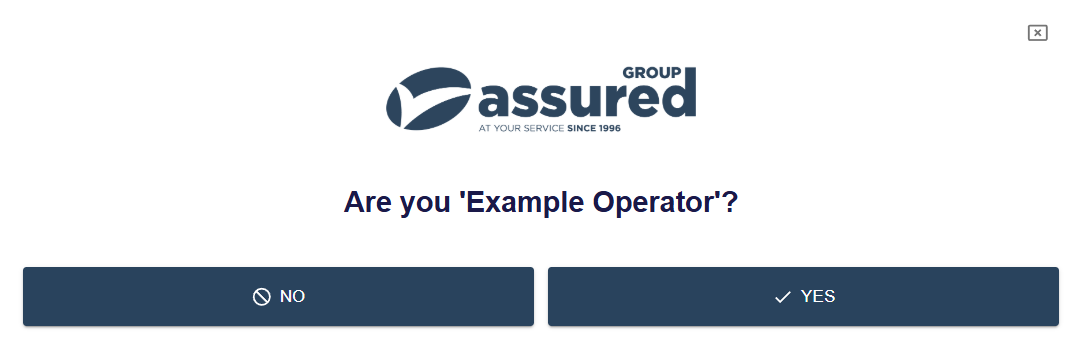
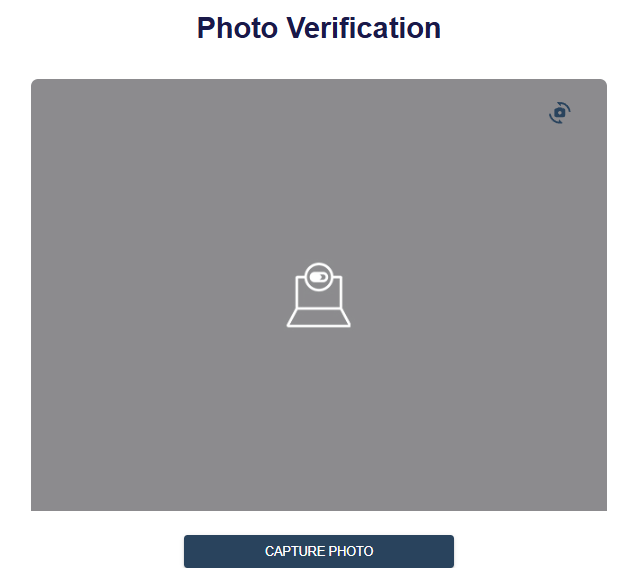
- If the Operator clicks Yes, a screen to capture a photo of the Operator is shown. This stage then compares the taken photo to the photo we have on the operators record, and if the person does not match a email alert is sent to the Regional and Site managers.
INFO
We only prevent clocking the Operator in if no face was detected in the photo, we silently fail and report to managers if the wrong face was detected.
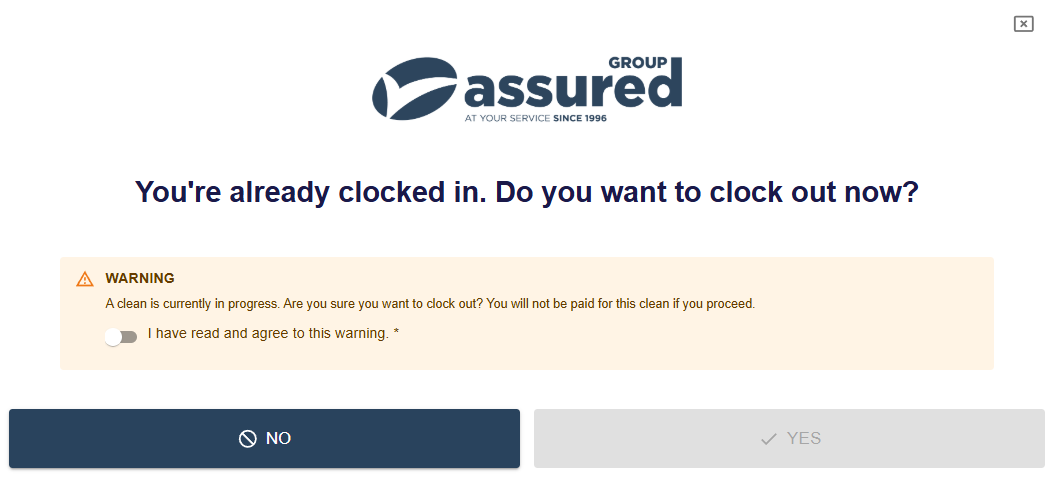
- If the Operator was already clocked in, a screen is shown asking if they would like to clock out.
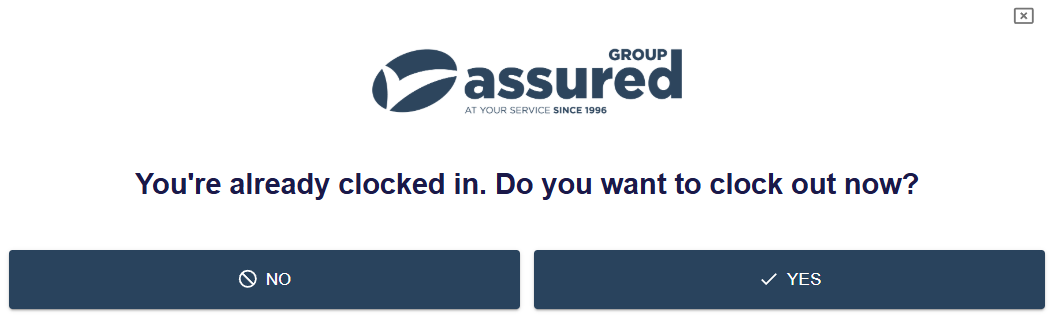
4a. If the Operator is trying to clockout with cleans still in progress, a warning screen will appear which the Operator will have to agree too, or cancel and complete the outstanding cleans first.
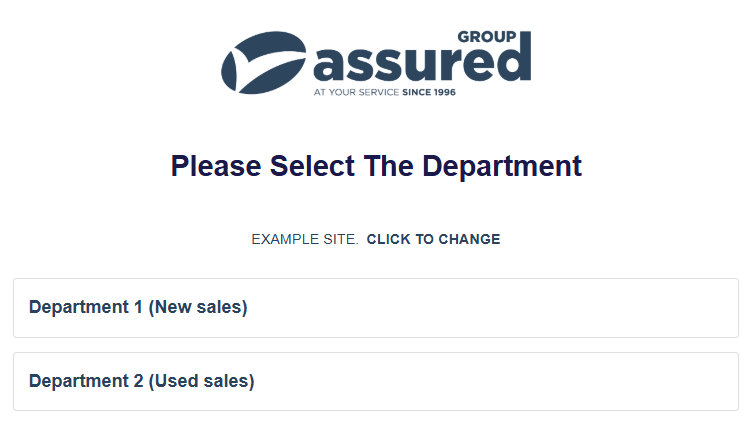
- If this wasnt a clockout and the Operator is trying to clock in - Once photo validation has passed, we can then select the
SiteandDepartment.
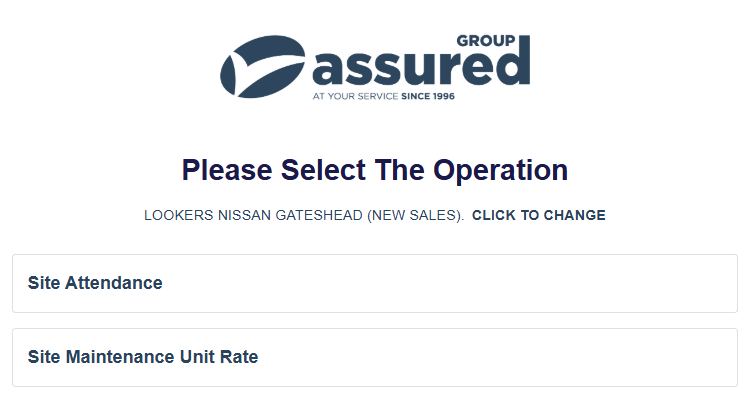
- Finally, we can select the
Operation, this has to be an activeOperationwhich is set toClocking Code.
- If all worked, a success message will appear.