

Appearance
Operator Users
The new platform allows you to manage operator accounts without I.T intervention. Creating a user at this page enables the operative to use the Operator Portal.
The url for the portal is the same as all AMS 2.0 applications.
The Manage Users screen is visible inside the Manager Portal > Operatives > Users menu. If you do not see this, you will need to enable Manager Manage Operator Users or Manager Read Operator Users inside the users role.
Creating Users
- To create a user, click
Create.
The fields in this screen are Email, Operator Type, Operator Code.
TIP
Operator Code can be left blank for new Operatives, its only used if you need to invite an existing operator to use the new Operator Portal.
Operator Types
There are 2 different user types:
PAYE- PAYE Operators.SubContractor- Operators acting as sub contractors.
TIP
You only need to select the Operator Type if requesting Onboarding - as this determines which flow the Operator fills out.
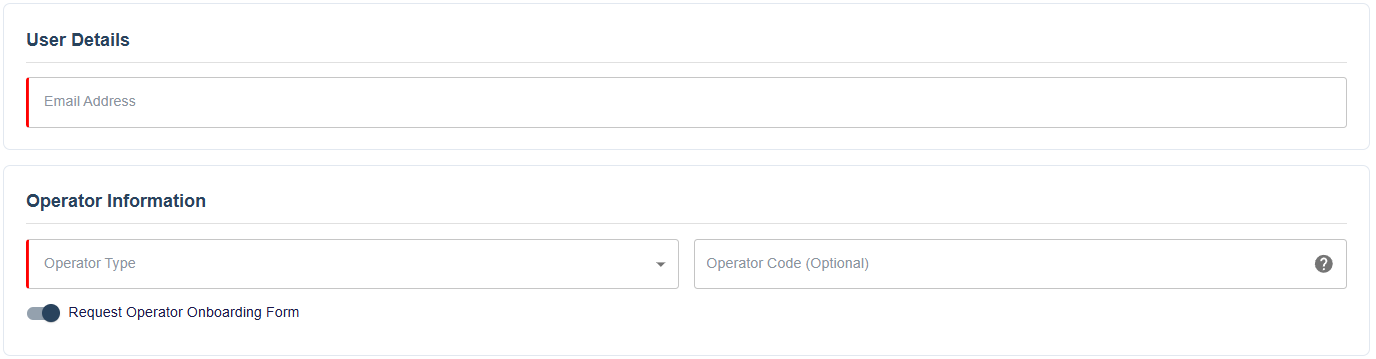
- Request Operator Onboarding Form
If you select the Request Operator Onboarding Form setting, the Operative will recieve an email and will unlock a new section in the Operator Portal called Onboarding.

The onboarding email will look like this:
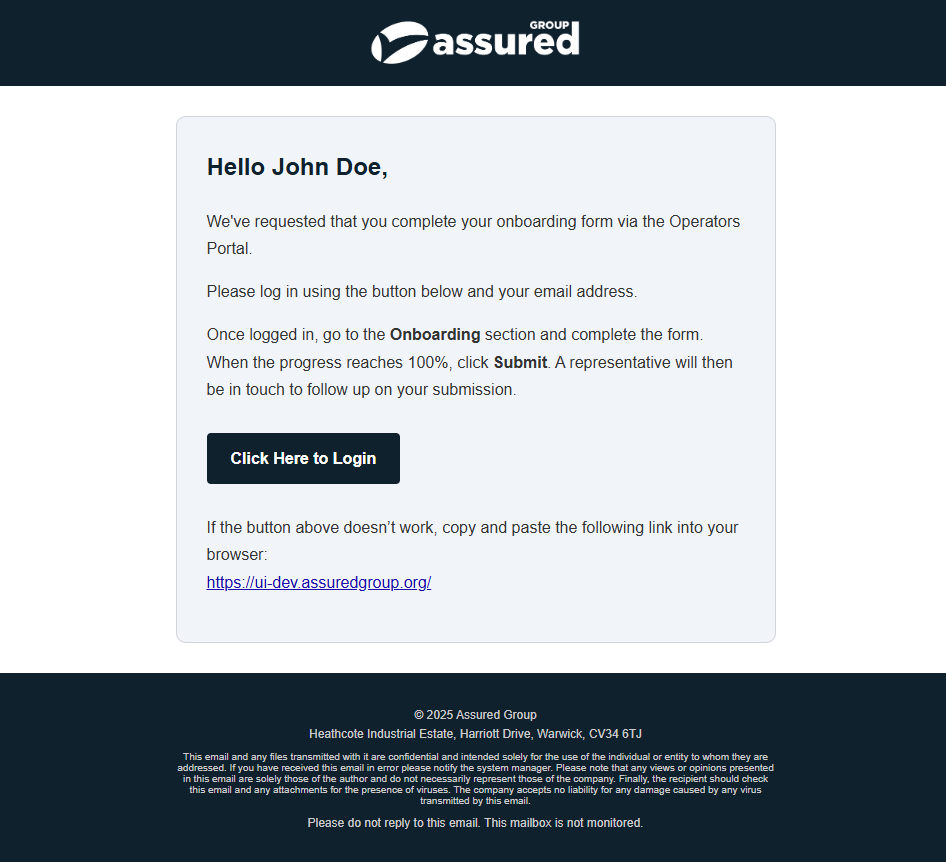
This can be used for NEW operatives - or existing Operatives who have a status that is not OPEN.
You can read more about the Onboarding flow here.
- The final section is where you can manage the permissions the operative will have on the
Operator Portal.
Clocking Enabled- If selected, theOperativewill be able to clock in / out via the portal.Clocking History Enabled- If selected, theOperativewill be able to view previous clocking history, and also manage any missed clock outs.Payment History Enabled- If selected, theOperativewill be able to see any previous pay information.

- Once you click
Save, the account will be created/updated and if a new account, login credentials will be emailed to the user specified. The user will need to change the password at there next logon.
Manage Users
Password Resets
TIP
To perform this action, you need to be assigned to a role that contains Manager Password Reset Operator Users.
- Click the 3 dots in the top right hand side of the
User Detailssection.

- Select
Reset Passwordfrom theMenu.
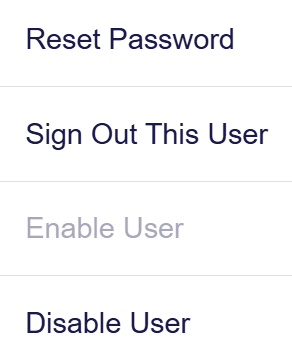
- The
Reset Passworddialog will then appear.
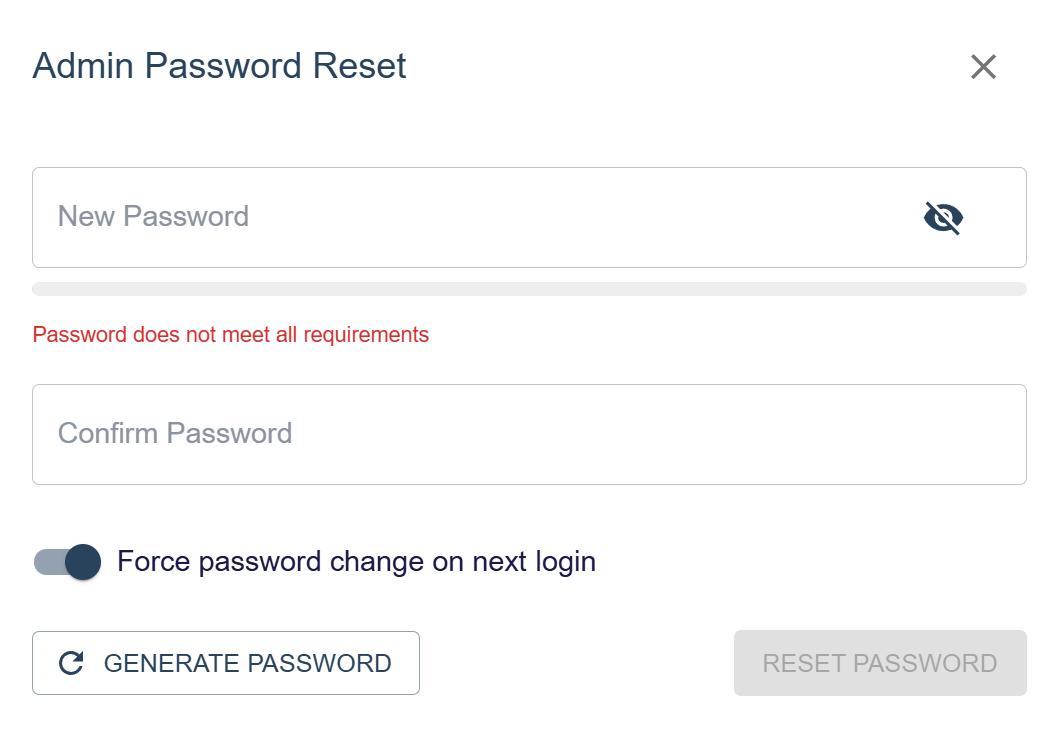
You can enter a password or use the generator, you can also specify if the user should have to change the password on next login. (It is recommended to have this option ticked for better security.)
Signing Out Users
TIP
To perform this action, you need to be assigned to a role that contains Manager Signout Operator Users.
- Click the 3 dots in the top right hand side of the
User Detailssection.
- Select
Sign Out This Userfrom theMenu.
- The user will now be signed out.
WARNING
It can take up to 15 minutes for the user to be signed out from all devices. The user will be able to sign in again afterwards unless the account was disabled.
Disable Users
TIP
To perform this action, you need to be assigned to a role that contains Manager Disable Operator Users.
- Click the 3 dots in the top right hand side of the
User Detailssection.
- Select
Disable Userfrom theMenu.
- The user will now be disabled.
WARNING
It can take up to 15 minutes for the user to be signed out from all devices.
Enable Users
TIP
To perform this action, you need to be assigned to a role that contains Manager Enable Operator Users.
- Click the 3 dots in the top right hand side of the
User Detailssection.
- Select
Enable Userfrom theMenu.
- The user will now be enabled.
WARNING
It can take up to 15 minutes for the user to be signed out from all devices.
Readonly
This Manage Users page supports read and write permissions. Read Only is presented like below:
