

Appearance
Operation Codes *NEW*
The Manager Portal allows managers to propose operation code changes. This includes creating new operation codes or adding existing ones to a customer.
If you do not see this option, you will need to enable Propose Customer Operations in the user’s role configuration.
To approve or reject proposals, you will need to enable Manage Customer Operations in the user’s role configuration.
Getting Started
To begin, select Customer Operations under the Customers dropdown in the sidebar.

You can then search by customer and/or department to find the account you would like to modify.
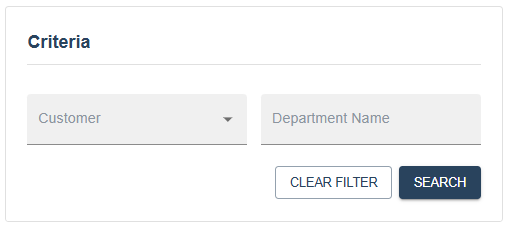
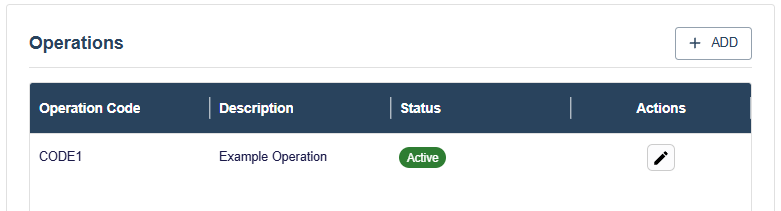
Once inside, you will see a list of all operation codes linked to the selected customer. Unless you are in read-only mode, you can click Add to link a new operation code.
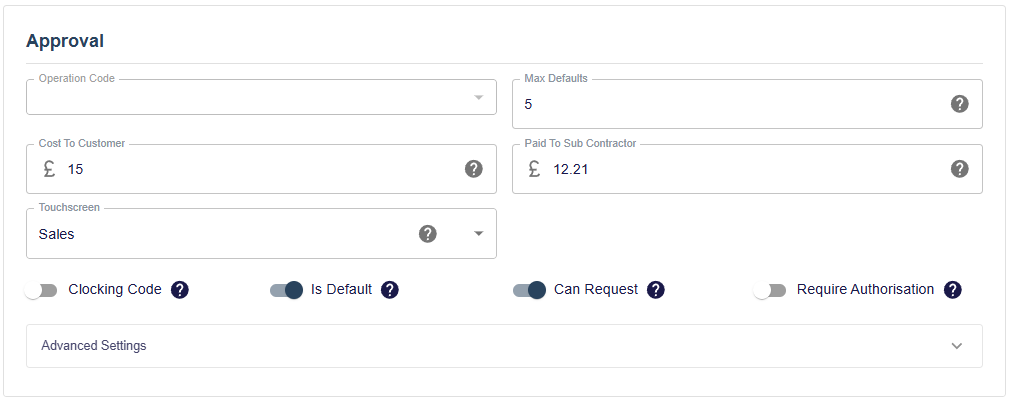
When adding or editing an operation code, the fields are displayed in a dialog window.
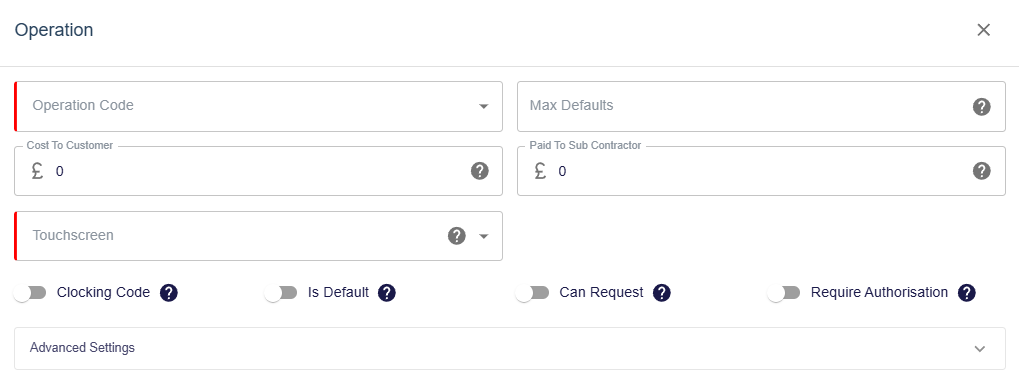
Each field in the interface includes a ? tooltip explaining the effect of that control.
- Operation Code - Select the operation code you would like to add.
- Max Defaults - The maximum number of day rates that can be used per week.
- Cost to Customer - The cost charged to the customer for this operation.
- Paid to Subcontractor - The amount paid to the operator for completing this operation.
- Touchscreen - Select which touchscreen this operation should appear on.
- In Use - Whether or not the operation code is in use.
- Clocking Code - Specify whether this code should be available when clocking in or out.
- Is Default - Determines whether this code appears on the Operations tab on the touchscreen (for example, a day or unit rate). This must be enabled if Max Defaults is greater than 0.
- Can Request - Determines whether the code can be selected when raising standard clean requests.
- Require Authorisation - Determines whether the code must go through the customer portal approval process before it can be started.
Group Level Pricing Warning
It is possible to flag certain contracts as Group Level Pricing - this displays a information box to remind managers that the price should be kept in sync across all locations.

Advanced Settings
Additional advanced settings are hidden by default. These should only be modified if you are confident in their purpose and impact.

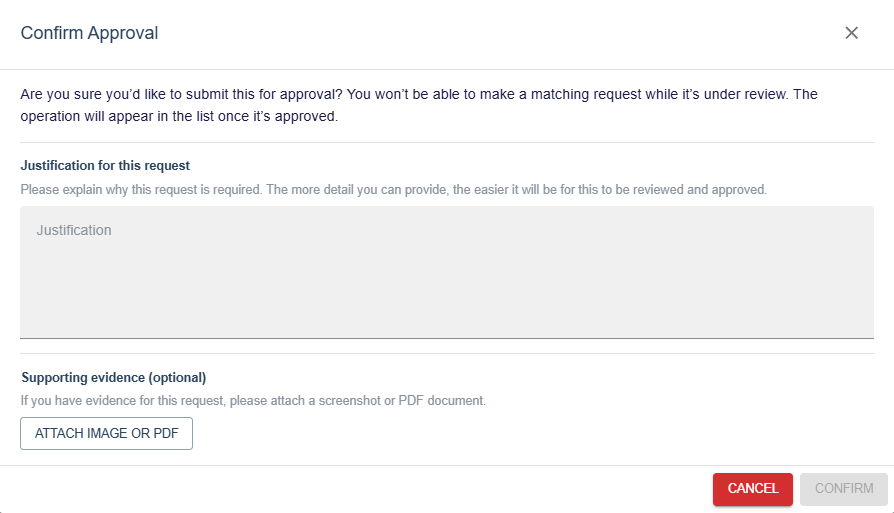
If you are a manager with proposal-only access, you can select Send for Approval. This sends the proposal to a manager with Manage Customer Operations permissions, who can then approve or reject the change.

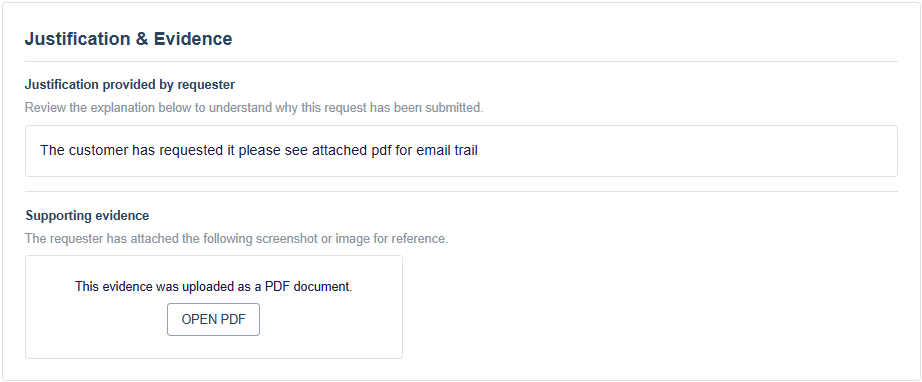
Justification & Evidence
As part of the approval process, justification for the request is required. You can also attach evidence which can either be an image or a pdf file.
If you have Manage-level access yourself, you can skip the approval process and apply the change with immediate effect.

Note All changes made through this process are fully audited with history tracking. Contact I.T. if you need details on who made a change or what was modified.
Questions
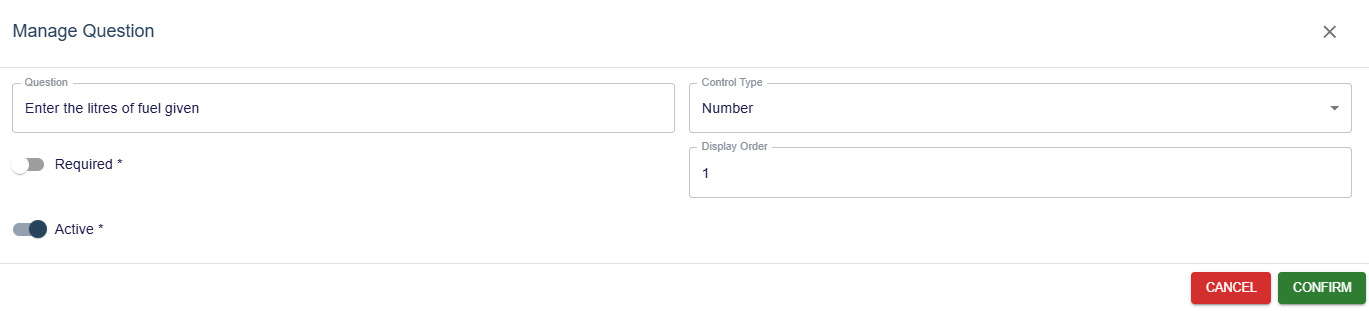
Questions can be configured at the Operation Code level and are displayed in AMA 2.0 during the workflow. Responses submitted by users are available in the AMS 2.0 Customer Portal for review and reporting.
Use the following screen to create and manage questions:
NOTE
Supported control types:
- Text
- Number
- Image
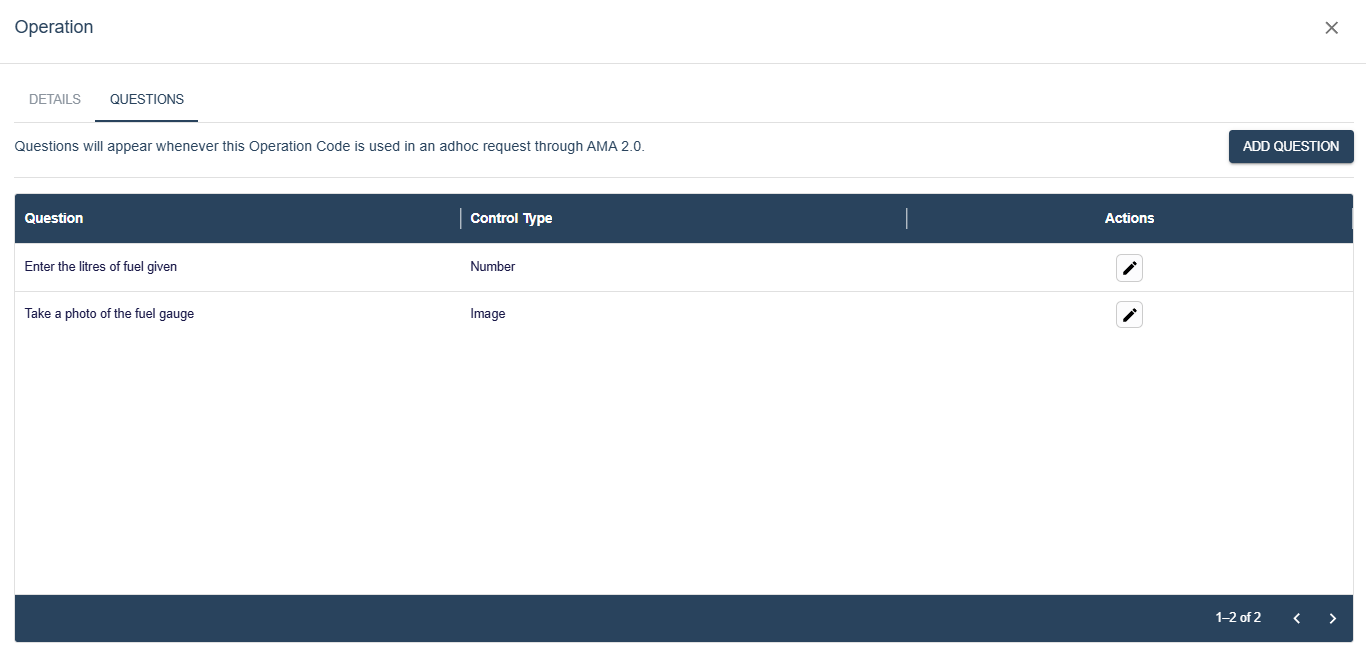
All questions associated with the selected operation code are displayed in the questions list:
The Approval Process
If you are a manager with approval access, you will receive an email notification containing a link when a proposal is submitted for a site you have access to.
The approval screen displays all fields exactly as entered by the proposing manager, using the same user interface.
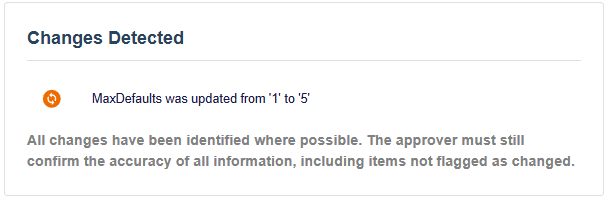
If the proposal modifies an existing operation code, the system will automatically detect and highlight changes to assist with the approval process.
Warning
Where possible, all changes are automatically identified. The approver must still verify the accuracy of all information, including fields that are not flagged as changed.
The manager can also then view the justification provided and any evidence attached.
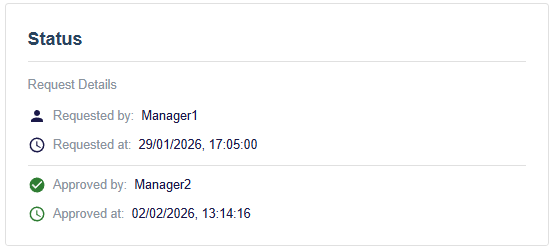
At the bottom of the page, you can see who requested the change and when. If the proposal has already been approved or rejected, the user who actioned it will also be shown.
The approving manager may update any incorrect fields and then:
- Approve with changes
- Approve as-is
- Reject the proposal

- At present, no notification is sent after an approval or rejection.