

Appearance
Reports
The Reports section gives you access to data extracts across your sites. Each report pulls live data from the system and presents it in an interactive grid you can filter, group, and export.
The reports available to you depend on what has been configured for your role. If you do not see Reports in the sidebar, contact your Assured manager.
Selecting a Report
Navigate to Reports from the sidebar.

Each report is shown with its name and a short description. Click a report to open it.
Running a Report
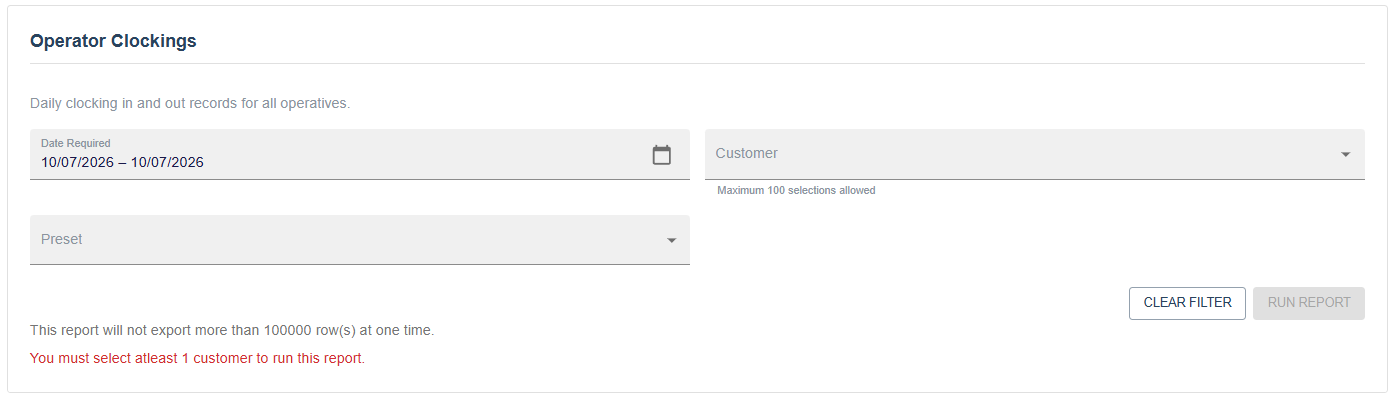
Each report has a criteria section at the top. The available filters depend on how the report is configured - not all filters appear on every report.
Date Required- A date range. Both dates are required when shown. The from date must not be after the to date. Some reports have an earliest date they can be run from, which is shown as a validation error if exceeded.Contract- Multi-select filter. At least one contract must be selected when shown.Site- Multi-select filter. At least one site must be selected when shown.Customer- Multi-select list of your accessible customer codes. At least one must be selected when shown.Preset- Load a previously saved layout. See Presets for details.
Any validation errors are shown below the filters. The Run Report button stays disabled until all required filters are filled and valid.
Click Run Report to execute. Once the report is loaded, a refresh icon appears in the header - click it to reload the data without changing your criteria.
TIP
Filter criteria are saved in your browser session per report. If you navigate away and come back, your last criteria will be restored automatically.
If the report has a row limit, a notice is shown below the filters indicating the maximum number of rows that will be returned or exported at one time.

Results are displayed in an interactive grid. See Using the Grid below for details on sorting, grouping, and exporting.
Using the Grid
The report grid is built on MUI DataGrid Premium, which gives you a range of ways to interact with the data beyond a basic table.
Quick Filter
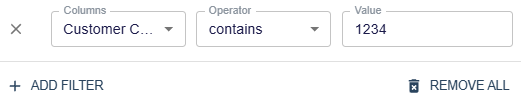
A search box is available in the grid toolbar. Typing here filters visible rows across all columns in real time.
Sorting
Click any column header to sort by that column. Click again to reverse the sort. Hold Ctrl (or Cmd on Mac) and click additional headers to sort by multiple columns at once.
Column Management
Right-click any column header to open the column menu. From here you can:
- Hide the column
- Pin it to the left or right edge of the grid
- Manage all column visibility at once via the
Columnsbutton in the toolbar
Drag a column header left or right to reorder columns. Drag the edge of a header to resize it.
Row Grouping
To group results by a column, open the column menu and select Group by. Rows are collapsed into groups and a count is shown. You can expand or collapse groups individually, or use the expand/collapse all controls in the grouped column header.
Multiple groupings can be applied at once - the groups nest inside each other in the order they were applied. Remove a grouping from the same column menu.

Aggregation
When row grouping is active, you can apply aggregates to numeric columns. Open the column menu on a numeric column and select an aggregation function:
Sum- Total of all values in the groupAverage- Mean valueMin/Max- Lowest or highest valueCount- Number of rows in the group
Aggregated values appear in the group header rows.
Pivoting
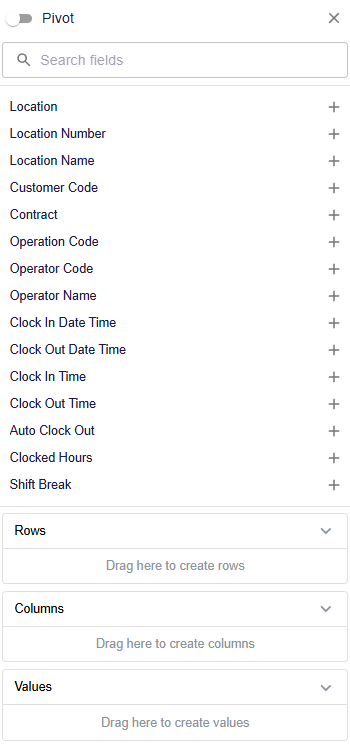
Pivot mode lets you rotate a column's values into separate columns, similar to a pivot table in a spreadsheet. Enable pivot mode from the Pivot button in the toolbar, then drag columns into the pivot, rows, and values areas.
Exporting
Click the Export button in the toolbar to download the current data as a CSV file. The export respects any active filters and grouping - only the visible rows are included, up to the report's row limit.
Saving Layouts with Presets
Once you have a grid layout you want to reuse - column order, grouping, pivots, sorting - you can save it as a preset. See Presets for how to create and manage them.