Appearance
Create Adhoc Request
The Mobile / Handheld application allows operators to Create Adhoc Requests quickly and efficiently when work has not already been scheduled.
If you do not see this option in the sidebar or home screen, you will need to enable Create Adhoc Request in the user’s role configuration.
Getting Started
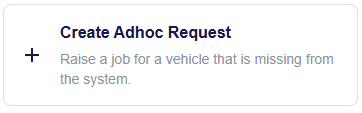
To begin, select Create Adhoc Request from the home screen or sidebar.
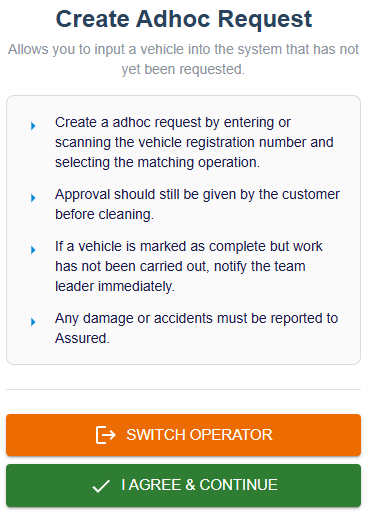
The first screen explains the process and outlines what is expected from the operator.
Note
If you chose to remember the Operator Code in the next step, you can change it here by selecting Switch Operator.
Operator Code
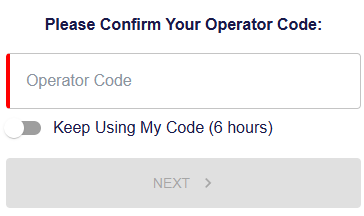
To use this module, an Operator Code must be provided.
This can be either:
- A standard operator code, or
- A Team Leader code
If you select Keep Using My Code, the system will continue using the saved operator code for 12 hours.
This can be cancelled or changed at any time from the home screen by selecting Switch Operator.
Vehicle Registration
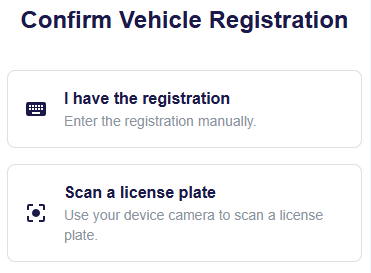
Each job is stored against a vehicle registration. You have two options:
- I have the registration – Manually enter the registration using the on-screen keyboard.
- Scan a license plate – Take a photo of the license plate and the system will attempt to read it automatically.
TIP
If more than one plate is detected, you will be asked to select the correct one.
Job Details
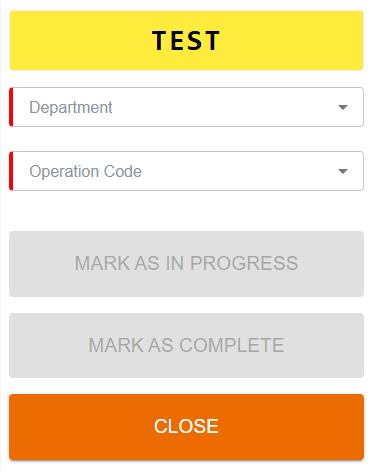
The scanned or entered registration will appear at the top of the screen.
You will then need to select the department and operation you are going to carry out.
You can then choose to either:
- Mark the job as In Progress, or
- Mark the job as Complete
If the job is marked as In Progress, it will appear in the View Requested Work flow, which is documented here.
Questions
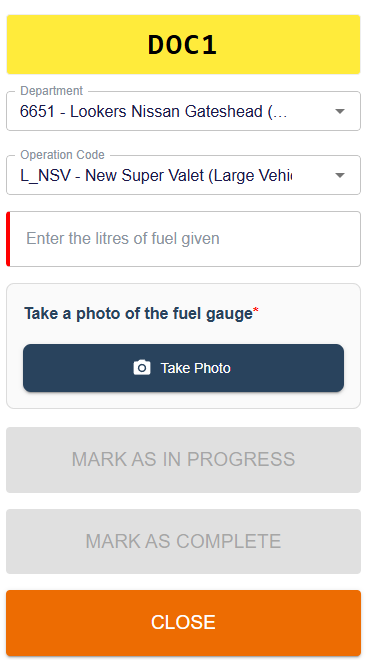
If questions have been configured for the selected Operation Code, they will be displayed in the order they were created.
All required questions must be completed before the clean can be submitted.
Confirmation
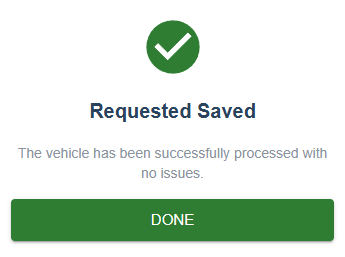
Once the request has been completed successfully, a confirmation screen will be displayed.