

Appearance
Department Budgets
The Department Budgets section of the Customer Portal lets you set and manage weekly hour budgets for your departments. Budgets can be created manually for a specific week or configured to repeat automatically every week.
A department budget must exist before a shift request can be submitted for that week. See Shift Requests for details.
If you do not see Department Budgets in the sidebar, your role will need ReadBudgets or ManageBudgets configured.
Permissions
ReadBudgets- View and search department budgets.ManageBudgets- Create and edit budgets. Without this, the pages are read-only.
Searching for Budgets
Navigate to Department Budgets from the sidebar.
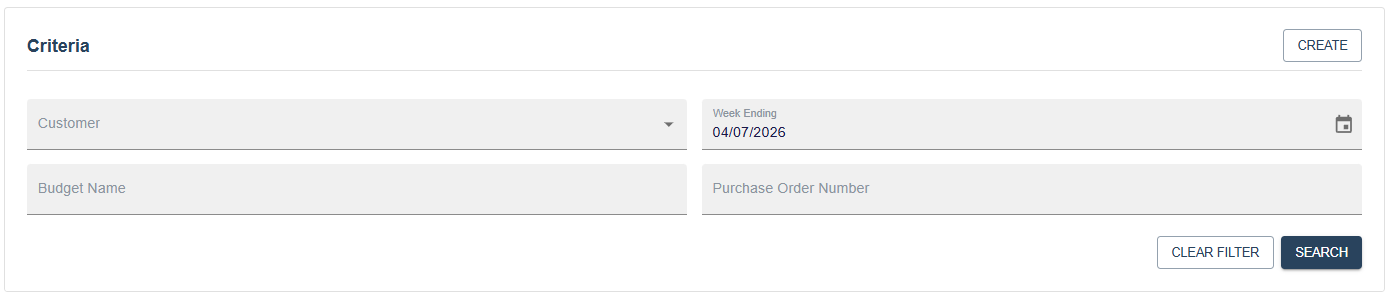
The search form includes the following filters:
Customer- Multi-select list of your accessible customer codes.Week Ending- A week picker. Defaults to the first Sunday of the current month.Budget Name- Free text filter against the budget name.Purchase Order Number- Free text filter against the PO number.
Click Search to run the query. Click Clear Filter to reset everything back to the defaults.

Results show Department, Budget Name, Purchase Order No, and Week Ending.
TIP
Search criteria are saved in your browser session. If you navigate away and come back, your last search will be restored automatically.
Click Detail on any row to open that budget.
Creating a Budget
TIP
To create budgets, you need ManageBudgets in your role.
Click Create on the search page to open a blank form.
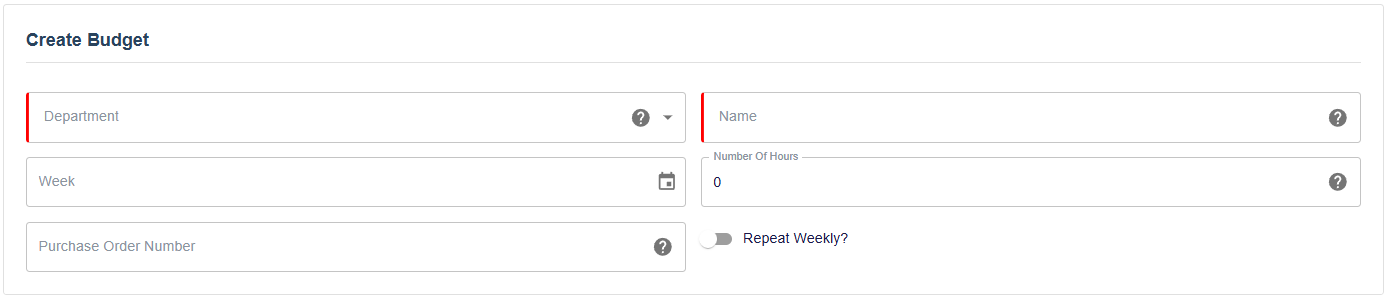
Department
Select the department this budget applies to. Required.
Name
Enter a name to describe this budget. Max 155 characters. Required.
Week
Select the week ending date this budget covers. Required.
Number of Hours
Enter the total hours budgeted for this department. Must be a whole number or an increment of 0.5. Required.
Purchase Order Number
If applicable, enter a purchase order number for this budget. Max 155 characters. Optional.
Repeat Weekly
Toggle this on if the budget should repeat automatically each week. When enabled, the system will create a budget for the following week every Wednesday at 7 PM, but only if no budget already exists for that week.
WARNING
You can only have one repeating budget per department. Only enable this if your hours are consistent week to week. If some weeks vary, you can create those manually and the automation will skip weeks that already have a budget in place.
Once you are happy, click Save. After saving, you will be taken to the manage page for the newly created budget.
Editing a Budget
Click Detail on any search result row to open an existing budget.
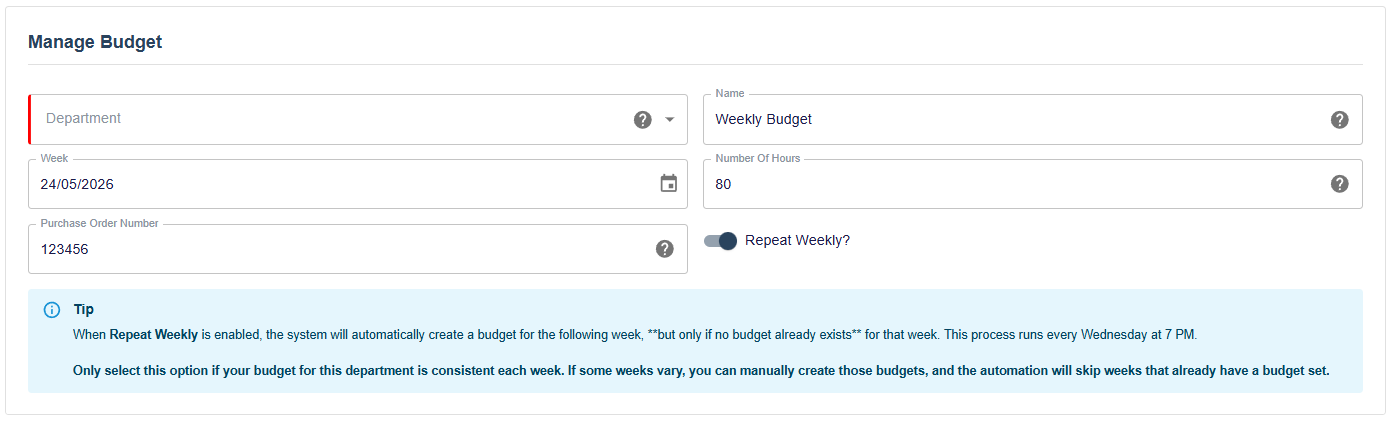
The same fields are available as when creating. Make your changes and click Save.