

Appearance
Operatives
The Manager Portal allows you to search, view, and maintain operative records. Each operative has a profile split across multiple tabs covering personal details, absences, documents, notes, manager assignments, and a change history.
If you do not see Operatives in the sidebar, your role will need the relevant permissions configured. See Permissions below.
Permissions
Access is split across several permission levels, so a user may have read-only access to some sections and manage access to others.
ManageOperatives- Save changes to operative details.OperativesAccessContactInfo- View and edit mobile and email fields.OperativesAccessSensitiveInfo- View and edit NI number, passport, date of birth, and driving license.OperativesAccessAddressInfo- View and edit address fields.OperativesAccessBankingInfo- View and edit bank account details.ManageOperativePayroll- Send an operative to payroll.ReadOperativeAbsense/ManageOperativeAbsense- View or manage the Absences tab.ReadOperativeDocuments/ManageOperativeDocuments- View or manage the Documents tab.ReadOperativeNotes/ManageOperativeNotes- View or manage the Notes tab.ReadOperativeManagers/ManageOperativeManagers- View or manage the Managers tab.ReadOperativeHistory- View the History tab.
Searching for Operatives
Navigate to Manager Portal > Operatives from the sidebar.
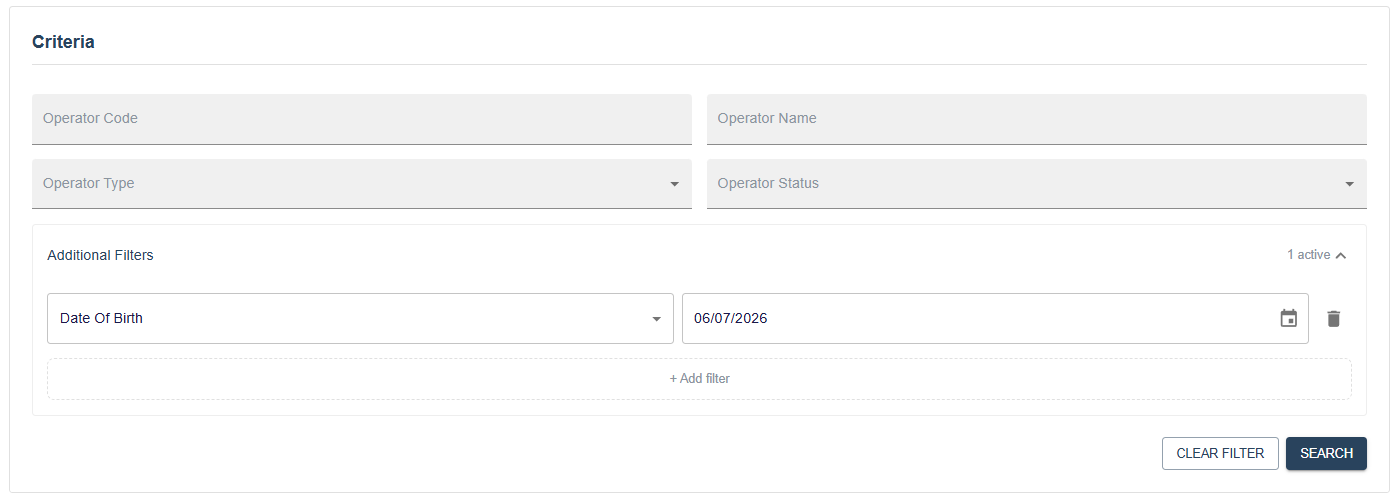
The search form has a set of standard fields along with an expandable Advanced section.
Standard fields include Operator Code, Operator Name, Operator Type, and Status. The advanced section adds Mobile Number, National Insurance Number, Date of Birth, Passport Number, Email Address, Postcode, and Authorisation Status.
Enter your criteria and click Search. Results appear in the grid below.

TIP
Search criteria are saved in your browser session. If you navigate away and come back, your last search will be restored automatically.
Click Edit on any row to open that operative's record.
Managing an Operative
The manage page shows the operative's full record split into tabs. Which tabs are visible depends on your permissions.

The available tabs are Details, Absences, Documents, Notes, Managers, and History.
Details Tab
The Details tab holds the operative's full profile, split into sections.
Basic Details
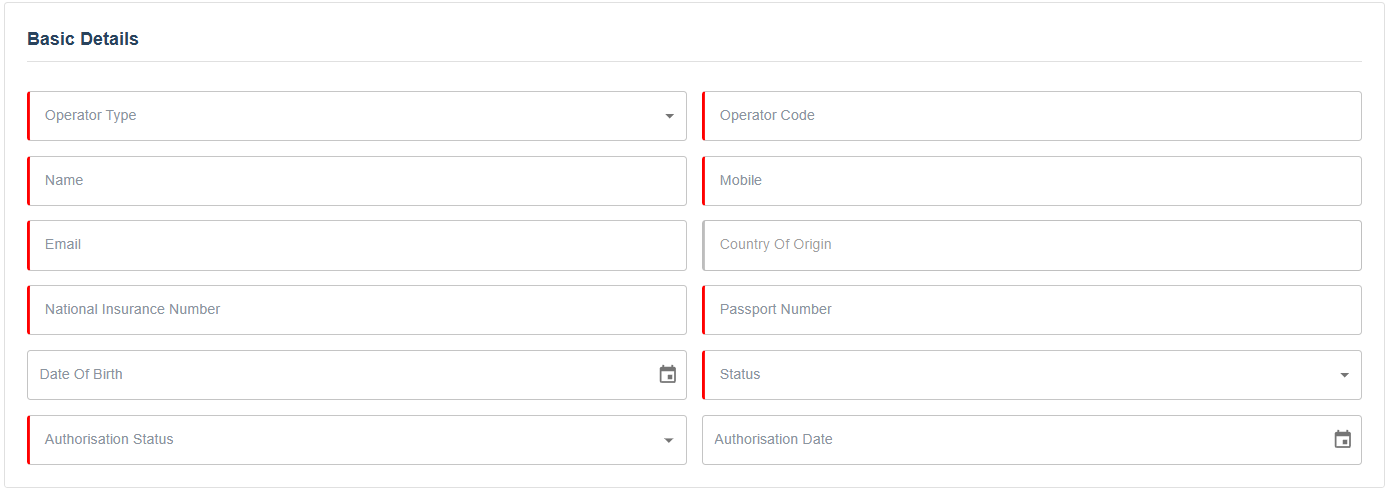
Operator Type and Operator Code cannot be changed after the record has been created.
Mobile and Email require OperativesAccessContactInfo to view or edit.
National Insurance Number, Passport Number, and Date of Birth require OperativesAccessSensitiveInfo.
Status can be set to Open, Hold, or Stop.
Visa
This section is only shown when the operative's Country of Origin is not GBR. It includes Visa Expiry, Share Code, and Share Code Check Result, which shows the cached result of the last share code check.
Address
Address fields are blurred by default. Click the eye icon to reveal them.
OperativesAccessAddressInfo is required to edit these fields.

Conviction Information
This section contains an Any Convictions toggle and a free text Conviction Details field.
Bank Details
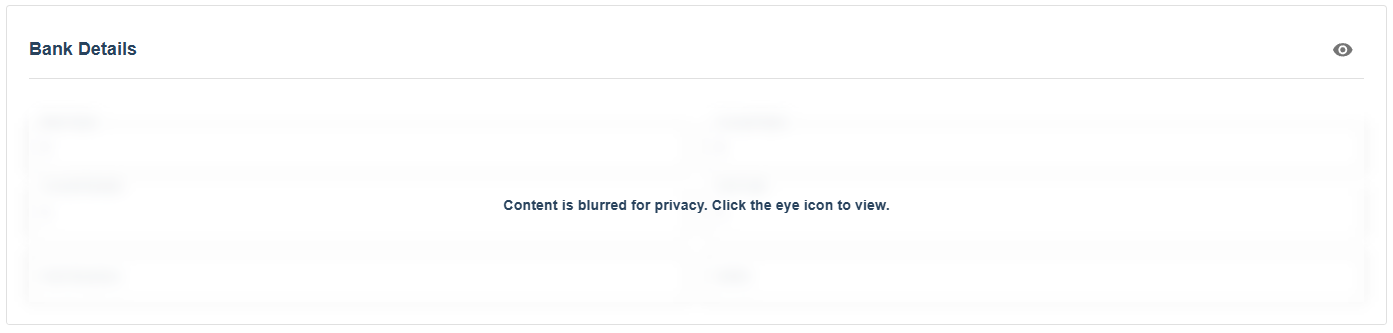
Bank details are blurred by default. Click the eye icon to reveal them.
OperativesAccessBankingInfo is required to edit these fields. Fields include Bank Name, Account Name, Account Number, Sort Code, Roll Number, and IBAN.
Next of Kin
Next of kin details are blurred by default. Click the eye icon to reveal them. Fields include Name, Mobile, and Address.
Contract Details
This section includes Date Contract Signed, Start Date, and Leave Date.
Driving
OperativesAccessSensitiveInfo is required to edit these fields. Fields include Country of Issue, License Number, Held From, and Expiry Date.
Business Information
This section is only shown for Sub-Contractor operatives. Fields include Company Reg Number, Unique Taxpayer Ref, Driving License Expiry, and VAT Number.
Payments
This section includes Purchase Analysis Code and Default Pay Code.
Additional Actions
The more options menu in the top right of the Details tab provides the following actions.
Send to Payroll
Available for PAYE operatives only. Requires ManageOperativePayroll. You can optionally enter an Employee ID before confirming.
Check Driving License
Runs a driving license check using the operative's license details. Requires ManageOperatives. This option is disabled if the required driving license fields have not been completed.
Check Share Code
Available for non-GBR operatives only. The operative's share code must be saved before this check can be run.
Absences Tab
The Absences tab lists all recorded absences for the operative. Columns include Start Date, End Date, Total Days, and Is Work Related.

Adding an Absence
TIP
To add or edit absences, you need ManageOperativeAbsense in your role.
- Click
Add Absence.
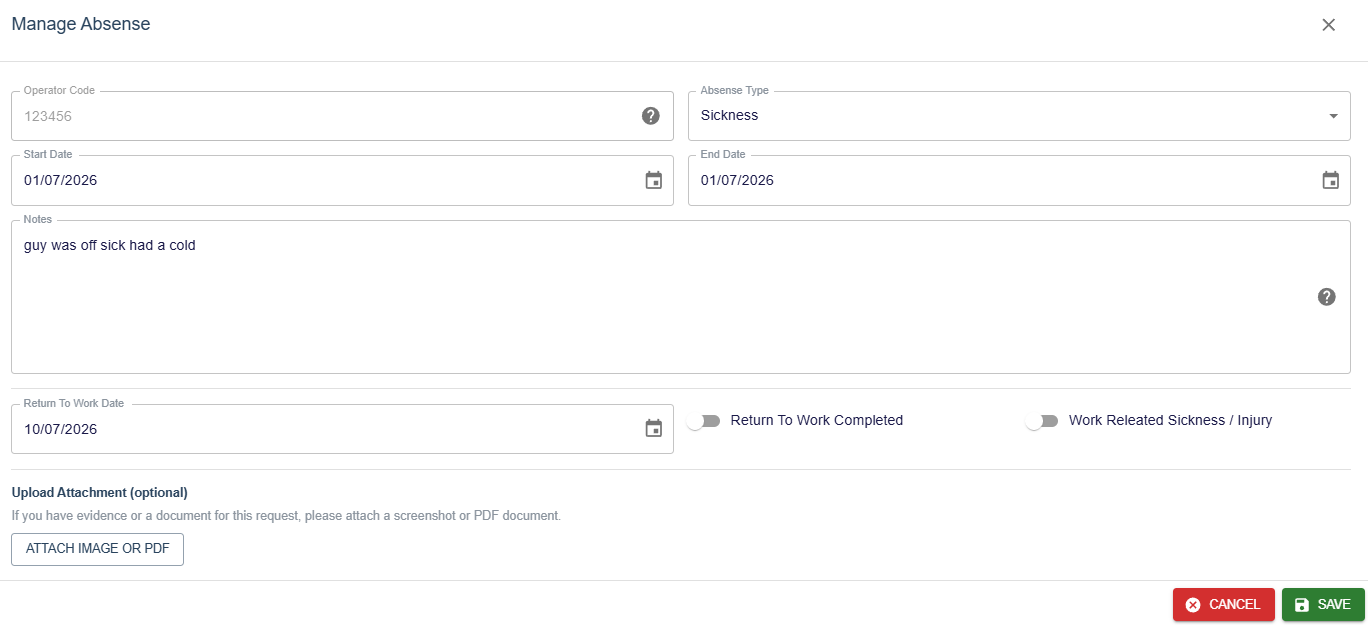
- Fill in the details.
Absence Typecan beSickness,Paternity,Maternity,Parental,Compassionate, orBereavement.Start Date,End Date, andNotesare required. You can also setReturn to Work Date,Return to Work Completed,Work Related Sickness / Injury, and optionally attach an image or PDF.
TIP
If an attachment has already been uploaded, toggle Replace Existing Documents before selecting a new file to overwrite it.
- Click
Saveto record the absence.
To edit an existing absence, click Detail on any row. To delete, click Delete on the row.
Documents Tab
The Documents tab stores uploaded files associated with the operative. Columns show Operator Code and Type.

Uploading a Document
TIP
To upload or delete documents, you need ManageOperativeDocuments in your role.
- Click
Upload Document.
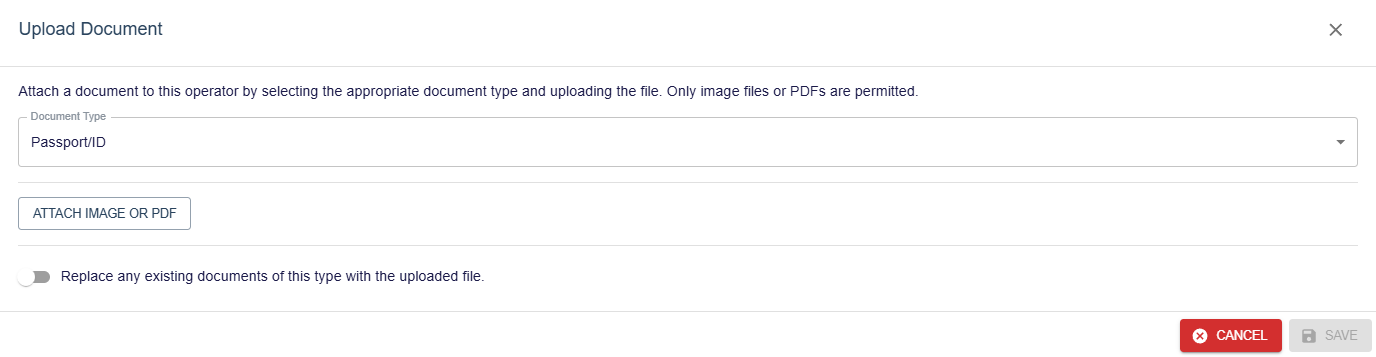
- Select a
Document Typefrom the list, choose an image or PDF file, and toggleReplace Existing Documentsif you want to overwrite an existing document of the same type.
- Click
Saveto upload.
Each document row also has a View action which opens the file in a new browser tab, and a Versions action which shows the full version history for that document.
Document Versions

The versions dialog shows each saved version with a Modification Date and a Latest badge on the current version.
Notes Tab
The Notes tab is for internal notes against an operative's record. Columns include Operator Code, Note, Date Created, and Owner.

Adding a Note
TIP
To add, edit, or delete notes, you need ManageOperativeNotes in your role.
Click
Add Note.Enter the note text. Notes have a maximum length of 155 characters.
- Click
Save.
To edit an existing note, click Edit on the row. To delete, click Delete.
Managers Tab
The Managers tab shows which managers are linked to the operative. Columns include Manager Operator Code, Manager Name, and Date Added.

Adding a Manager
TIP
To add or remove managers, you need ManageOperativeManagers in your role.
Click
Add Manager.Use the operator code search field to find and select the correct manager.
- Click
Save.
To remove a manager, click Delete on the row.
History Tab
The History tab shows a full audit log of every change made to the operative's record. Columns include Operator Code, Date Modified, Modified By, and Fields Modified.
Click Preview on any row to see a breakdown of what changed. Each field shows the old value struck through alongside the new value. This view is read-only.