

Appearance
Audits
The Manager Portal now allows for Audits to be submitted - which follows a similar interface to the Touchscreen Audits but refined for mobile use and also includes the ability to take photos.
If you do not see the Audits option in the sidebar, you will need to enable Manager Submit Audits inside the users role.
Inside the users role, there is also a Audits section, only audits linked to the users role will display at the manager portal.
Starting an audit
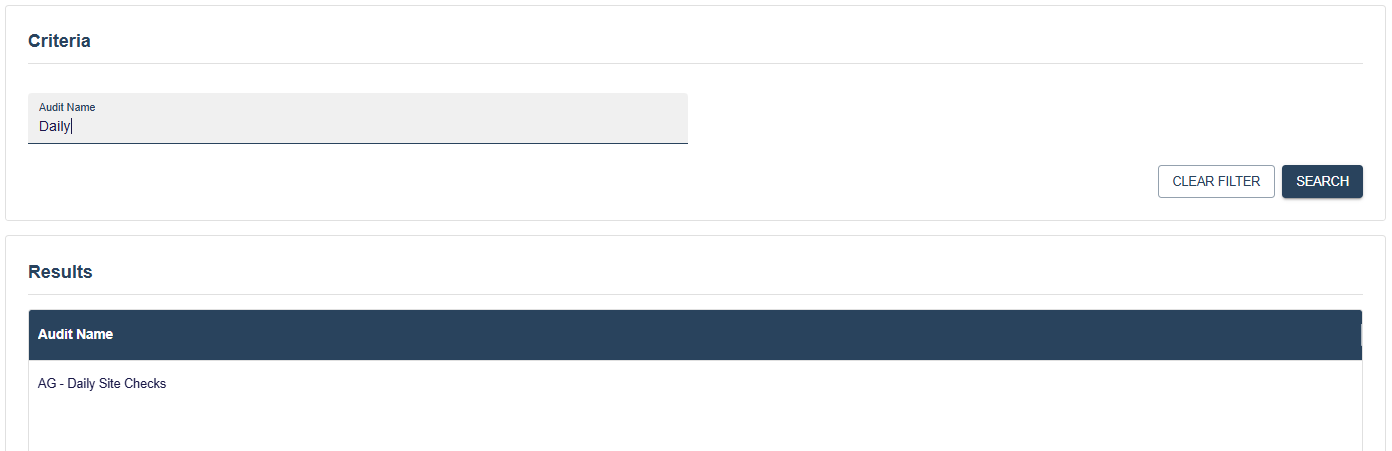
The list of available audits will be displayed in a paginated grid, you can refine this list by filtering by the audit name - or by tweaking the page size / page number.
You can select the audit you want to carry out by selecting the row.
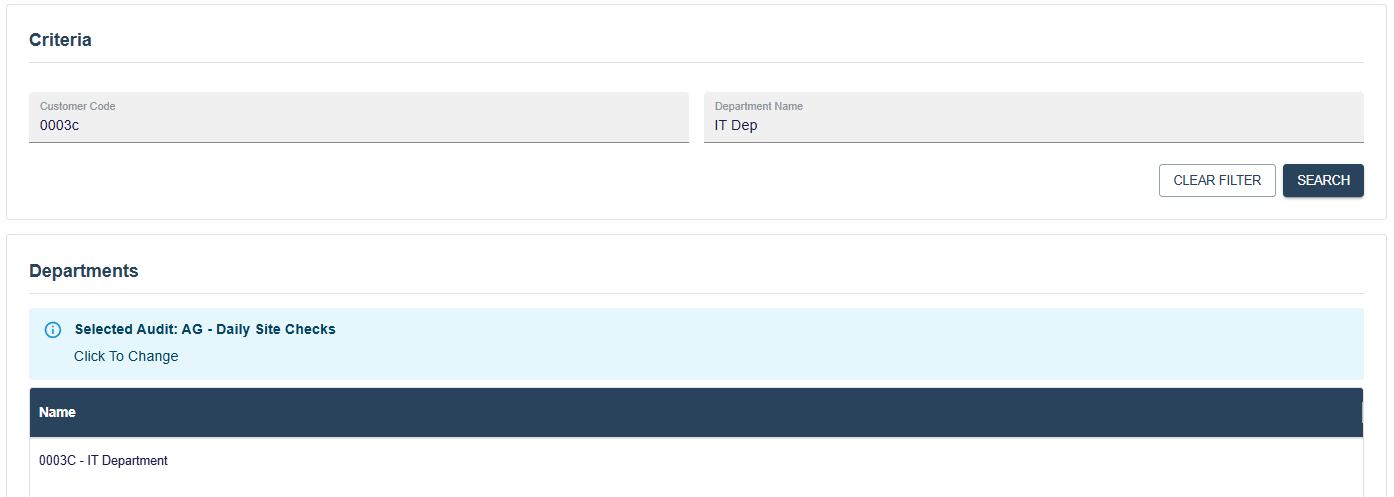
Once you have selected an audit, you will need to confirm which location the audit is being carried out for. If you have access to multiple sites / departments you can refine this grid by filtering by customer code or the department name.
Once you have selected a department by selecting the row, a confirmation dialog will appear to confirm your choice. If the information displayed is correct click Confirm, else Cancel to reset the progress so far.
Audit Groups
Now we have selected an audit and department we can see the groups for the selected audit, the Submit button at the bottom will remain disabled until all required sections have been filled out.
To start a group, click the Start button.

Question Flow
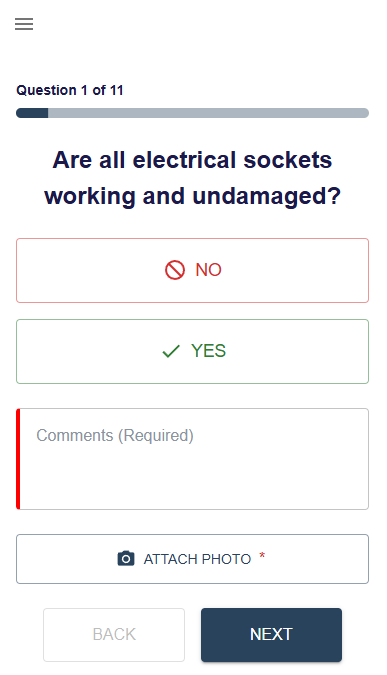
Once inside a group, a flow of questions will be displayed, these will either be Yes/No or a 1-10 scale. Comments and photos can be filled out which can be set as mandatory via ams 1.0.
Confirmation
If the audit was submitted without issue, a confirmation screen will display.
