

Appearance
Clean Requests
The Clean Requests feature lets users search, create, and manage clean requests against vehicles. It is available in both the Manager Portal and the Customer Portal and works identically in both.
If you do not see Clean Requests in the sidebar, your role will need the relevant permissions configured. See Permissions below.
Permissions
ManageCleanRequests- Create, edit, and delete requests. Without this, the pages are read-only.DeleteStartedCleans- Delete requests that are no longer inPendingstatus.CleanRequestVehicleLookup- Use the vehicle registration lookup on the manage page.ReadDuplicateRequests/ManageDuplicateRequests- Access the approvals page after sending a request for approval.
Searching for Requests
Navigate to Clean Requests from the sidebar.
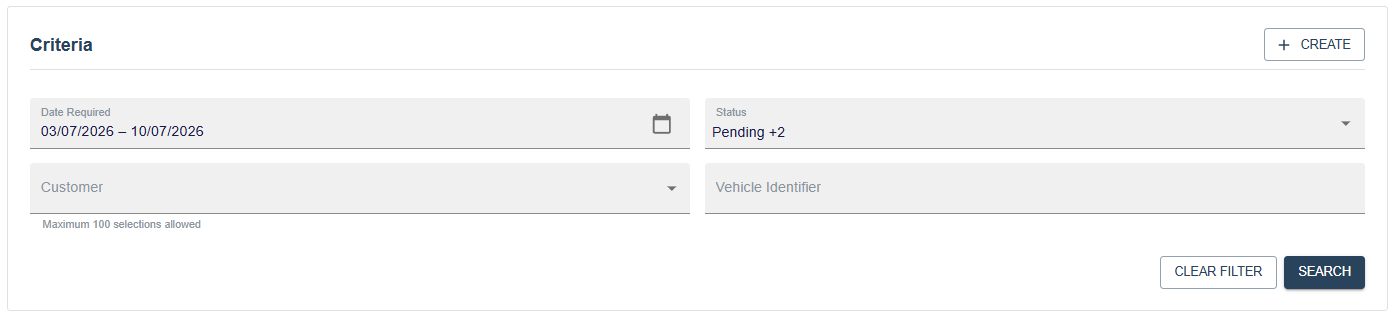
The search form includes the following filters:
Date Required- A date range selector. Defaults to the last 7 days.Status- Multi-select. Options arePending,In Progress, andCompleted. All three are selected by default.Customer- Multi-select list of your accessible customer codes.Vehicle Identifier- Free text search. Press Enter to trigger the search.
Click Search to run the query. Click Clear Filter to reset everything back to the defaults.

Results show Date Time Required, Operation Code, Customer Code, Vehicle Identifier, and Status.
TIP
Search criteria are saved in your browser session. If you navigate away and come back, your last search will be restored automatically.
Click Edit on any row to open that request.
Creating a Request
TIP
To create requests, you need ManageCleanRequests in your role.
Click Create on the search page to open a blank request form.
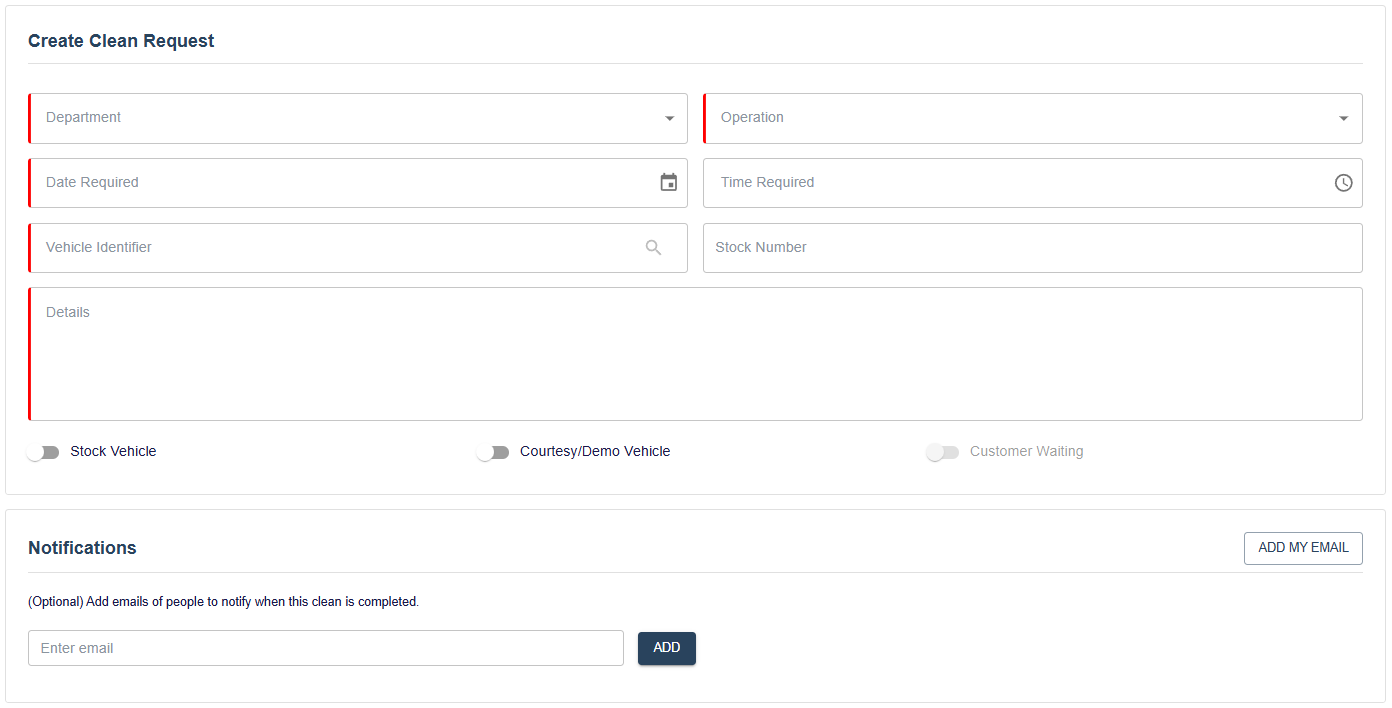
Department and Operation
Select a Department first. Once a department is selected, the Operation dropdown will populate with the available operations for that site. Both fields are required.
Date and Time
Select the Date Required and Time Required. Past dates are not selectable. The available time slots depend on the site's working days and whether half-hour cleans are enabled.
Vehicle and Stock
Enter the Vehicle Identifier (max 7 characters, auto-converts to uppercase). If your role includes CleanRequestVehicleLookup, a lookup icon will appear next to the field to search for a registration.
Stock Number is optional.
Details
Enter a description of the work required in the Details field. This is required.
Vehicle Flags
Toggle any of the following that apply:
Stock VehicleCourtesy / Demo VehicleCustomer Waiting(may be disabled if the site does not allow it)
Additional Operations
If the selected operation supports add-ons, a list of additional operations will appear below the main form. Select any that apply.

Cost Information
A cost breakdown for the selected operations is shown while creating a new request.
Notifications
You can add email addresses to be notified when the clean is completed. Click Add My Email to add your own address quickly.

Once you are happy, click Save. After saving, you will be taken to the manage page for the newly created request.
WARNING
If the system detects a potential duplicate, the Save button will be replaced with Send For Approval. See Approval Workflow below.
Editing a Request
Click Edit on any search result row to open an existing request.
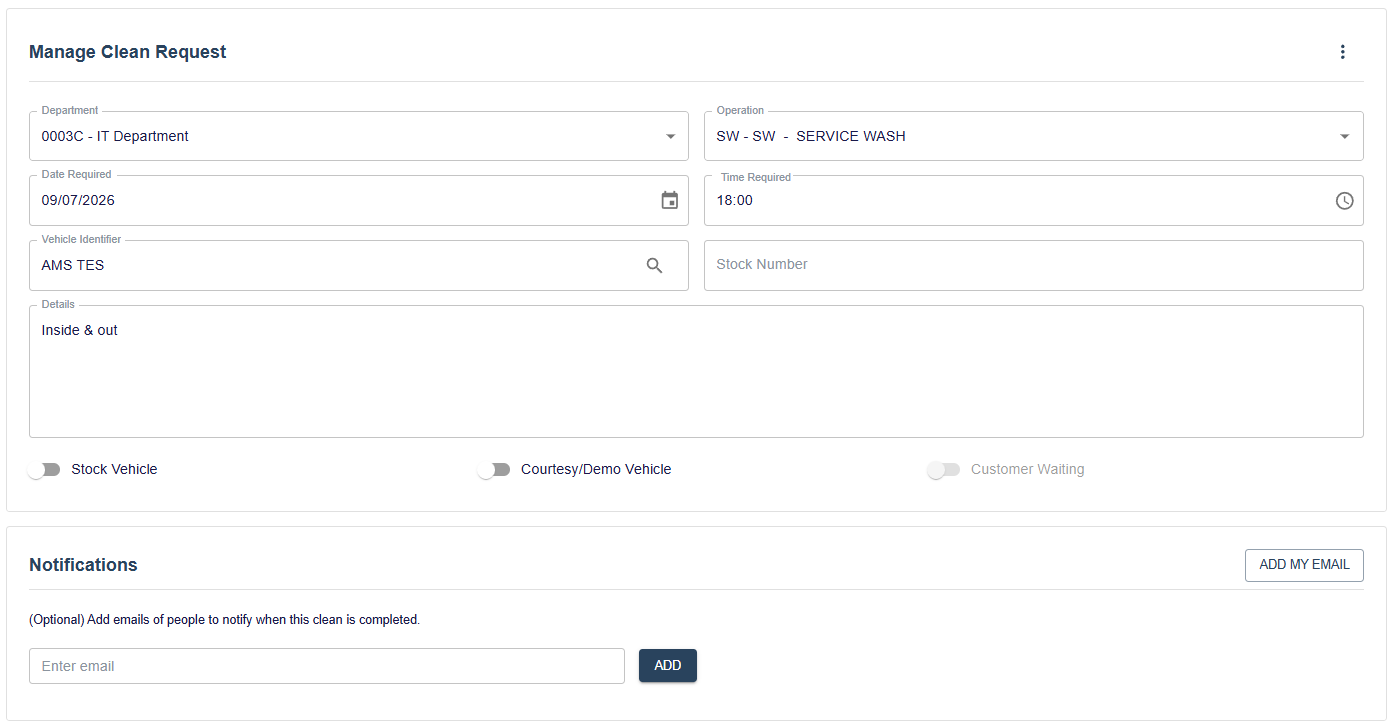
The same fields are available as when creating, with the following differences:
- Completed requests cannot be saved (the
Savebutton is disabled). - If the request is completed, a read-only section shows the
Operator Code,Operator Name,Started, andCompletedtimestamps. - If the operation has questions, a read-only
Questionssection is shown with the answers submitted by the operative.

Menu Actions
The three-dot menu in the top right provides additional actions when editing a request.
Delete Request
Permanently deletes the request. For requests that are no longer Pending, DeleteStartedCleans is also required. A confirmation dialog will appear before the deletion is carried out.
Update Identifier
Only available on completed requests. Opens a dialog to correct the vehicle identifier if it was entered incorrectly.

Approval Workflow
If a request conflicts with an existing one, the system will flag it as a potential duplicate when you click Save. The Save button changes to Send For Approval and a message explains the reason.
Click Send For Approval to submit the request for review. If your role includes ReadDuplicateRequests or ManageDuplicateRequests, you will be taken directly to the approvals page to review the conflict.
Bulk Import
The bulk import page allows multiple clean requests to be created at once from a CSV file.
Navigate to Clean Requests > Bulk Import from the sidebar.

WARNING
Bulk importing bypasses the duplicate check.
Downloading the Template
Click Download Template to get the official CSV template with the correct column headers.
Validating the File
- Click
Select CSV Fileand choose your file.
- Click
Validate File. The system will check every row and display the results.

Rows with errors are highlighted. The Error Information column explains what is wrong with each row. The summary at the top shows the total record count and how many have errors.
If there are any errors, correct them in the file and re-upload before proceeding.
- Once the file validates with no errors, click
Importand confirm the dialog. Avoid navigating away or refreshing while the import is running.
After the import completes, a summary shows how many records were imported and how many failed. Any failed records are listed in a table below.
Click Start Over to reset the page and import another file.