

Appearance
Confirm Work
The Confirm Work section of the Customer Portal allows you to raise and track work requests against your sites. You can create new requests, monitor their progress through the approval workflow, and edit or delete pending requests.
If you do not see Confirm Work in the sidebar, your role will need ReadWork or ManageWork configured.
Permissions
ReadWork- View and search work requests.ManageWork- Create, edit, and delete requests. Without this, the pages are read-only.
Statuses
Requests move through the following statuses:
DraftSent to AssuredAwaiting AuthorisationAuthorised by CustomerAuthorised by Assured ManagerCompleteRejected
Searching for Requests
Navigate to Confirm Work from the sidebar.
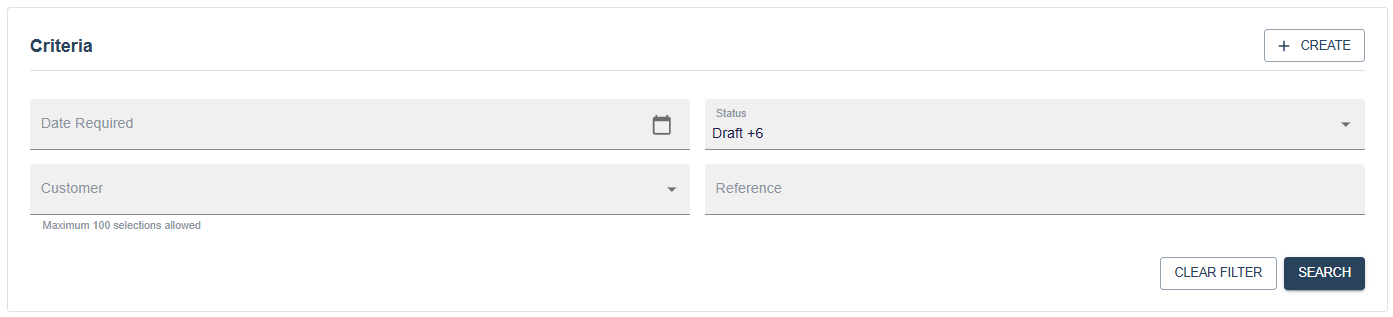
The search form includes the following filters:
Date Required- A date range selector.Status- Multi-select. All statuses are selected by default.Customer- Multi-select list of your accessible customer codes.Reference- Free text search against the request reference.
Click Search to run the query. Click Clear Filter to reset everything back to the defaults.

Results show Date Required, Status, Customer Code, Operation Code, Reference, and Details.
TIP
Search criteria are saved in your browser session. If you navigate away and come back, your last search will be restored automatically.
Click Edit on any row to open that request.
Creating a Request
TIP
To create requests, you need ManageWork in your role.
Click Request Work on the search page to open a blank form.
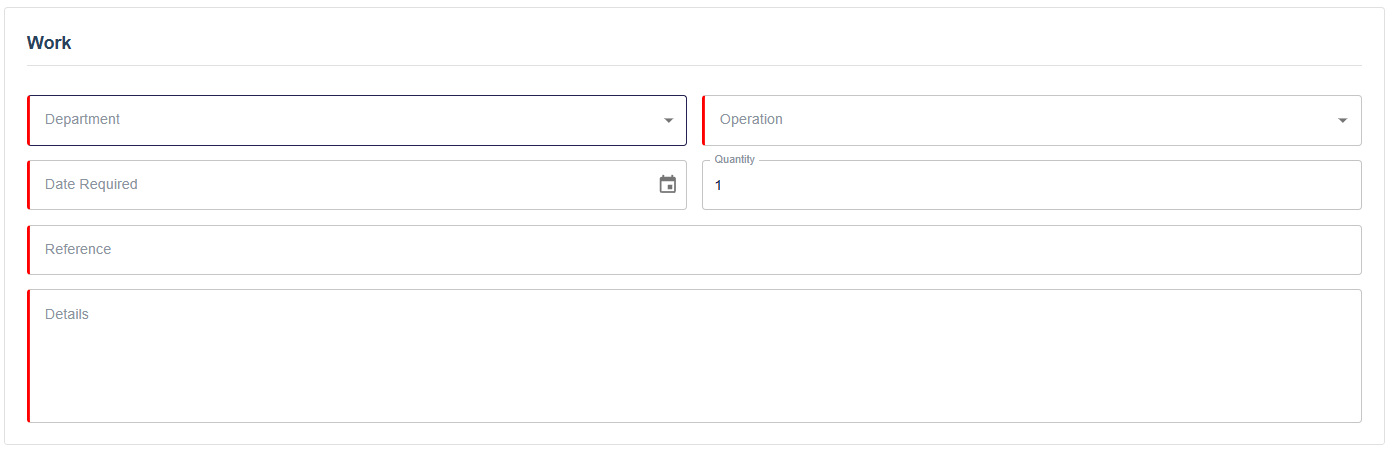
Department and Operation
Select a Department first. Once selected, the Operation dropdown will populate with the available operations for that site. Both fields are required.
Date Required
Select the date the work is needed by. Past dates cannot be selected.
Quantity
Enter the number of units required. Must be greater than 0.
Reference
Enter a reference for this request, such as a purchase order number or internal reference. Max 30 characters.
Details
Enter a full description of the work required. Max 2,000 characters.
Cost Information
When creating a new request, an estimated cost for the selected operation is shown below the form.
Once you are happy, click Save. After saving, you will be taken to the manage page for the newly created request.
Editing a Request
Click Edit on any search result row to open an existing request.
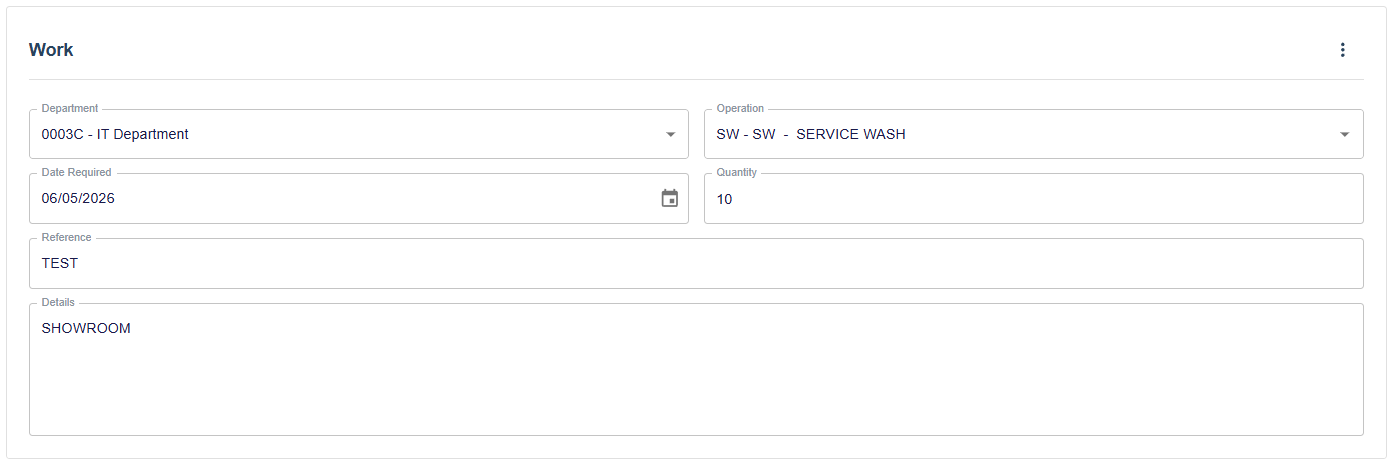
The same fields are available as when creating. Completed requests cannot be saved.
Deleting a Request
The three-dot menu in the top right contains a Delete Work option. This is disabled for completed requests. A confirmation dialog will appear before the deletion is carried out.