

Appearance
Cleans
The new touchscreen allows Operators to start/cancel/complete cleans as required.
The cleans screens are visible at the Pending Cleans and In Progress tabs. If you do not see this, you will need to enable Touchscreen Allow Cleans inside the users role.
Search Screen
- The initial screen for
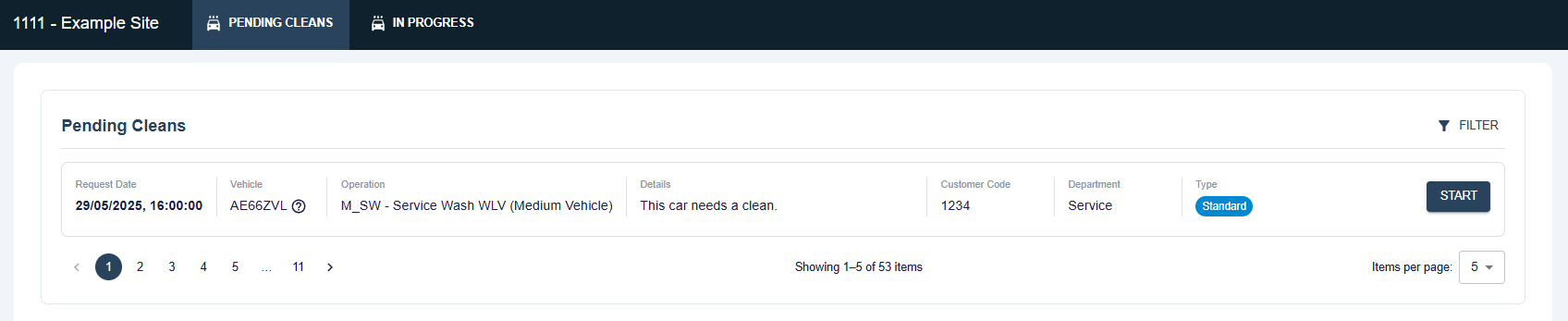
Pending Screenslooks like the below, displaying a paginated results set of the cleans for the site. The page and page size can be tweaked at the below of the page.
TIP
Cleans are ordered by:
- Customer Waiting
- Stock Vehicle
- Date Required
- Vehicle Identifier
The results contain a type column, the available types are:
Standard - (BLUE) Standard Clean
Waiting - (RED) The customer has been marked as waiting for this clean.
Stock Vehicle - (AMBER) The request has been marked for a Stock Vehicle.
Multiple - (GREEN) Multiple jobs are listed for this Vehicle identifier.
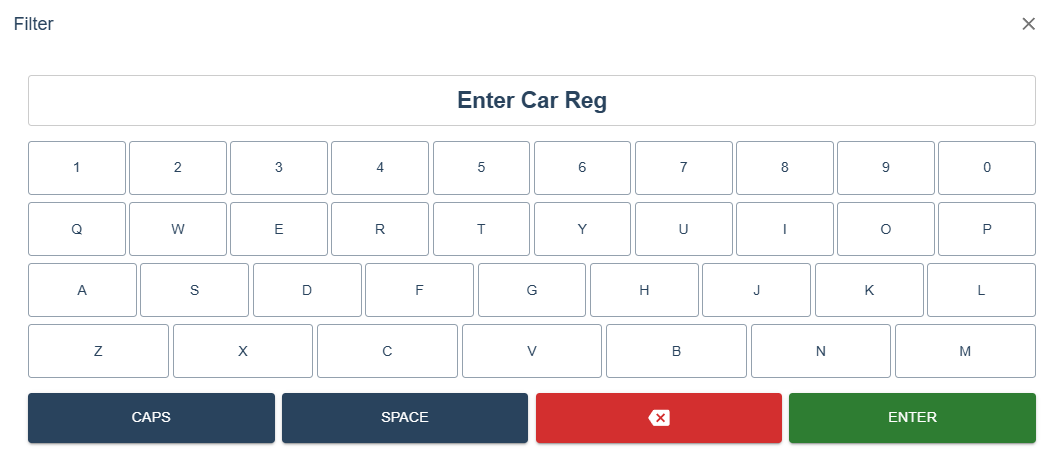
- The results set can be filtered upon, the current filter is by Vehicle registration only and can be accessed by clicking the
Filterbutton.
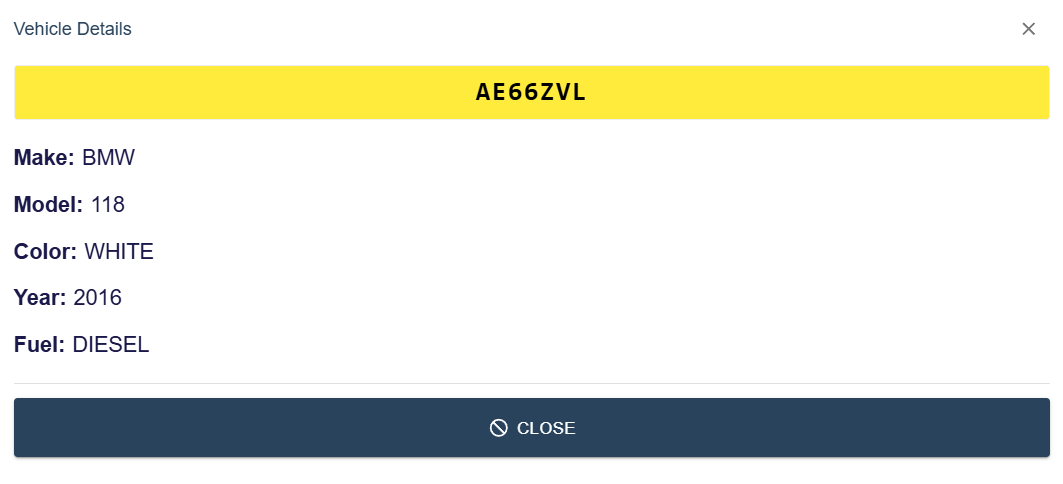
- The Vehicle identifier displayed in column (2), can be clicked to retrieve information about that registration.
Starting a clean
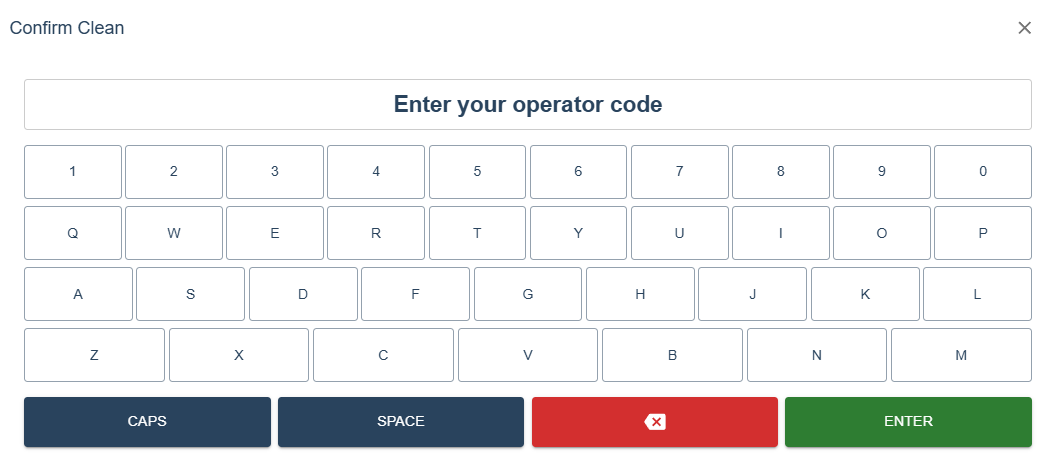
- Once
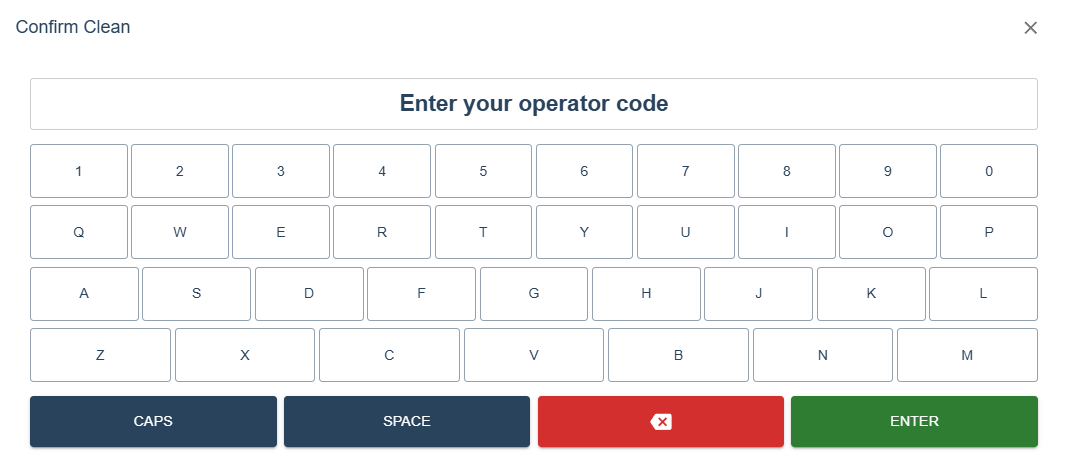
Startis clicked, a dialog will appear asking for the Operator code.
INFO
Possible error codes:
- Please provide an operator code.
- An operator with the code 'X' was not found.
- You're not clocked in, please clock in.
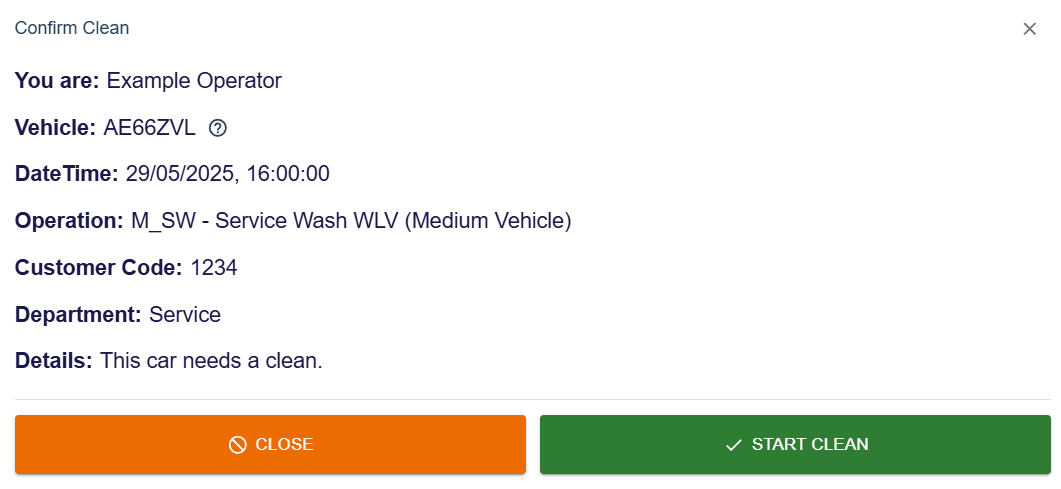
- Once a valid Operator has been inputted, a screen displaying all the information will appear. The vehicle registration can be clicked on this screen too which will load the make,model etc.
INFO
Possible error codes:
- You already have a clean in progress, please finish that first.
- If you click
Start Cleanand it was successful, a confirmation screen will display.

In Progress Cleans
Cleans that are in progress are shown under the In Progress tab, and contain all the same controls as the Pending tab, such as filters and pagination etc.
- Once a clean is clicked, a dialog will appear asking for the Operator code.
INFO
Possible error codes:
- Please provide an operator code.
- An operator with the code 'X' was not found.
- You're not clocked in, please clock in.
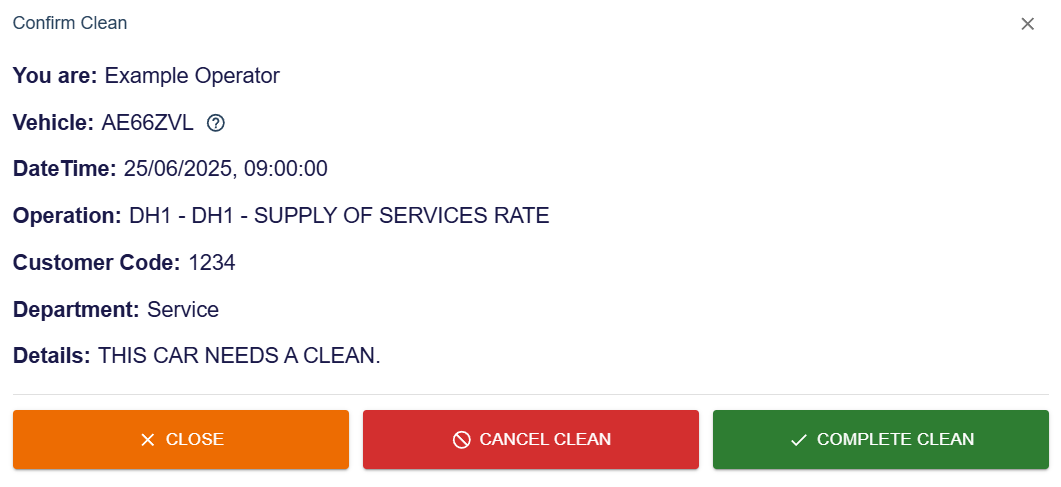
- Once a valid Operator has been inputted, a screen displaying all the information will appear. The vehicle registration can be clicked on this screen too which will load the make,model etc.
TIP
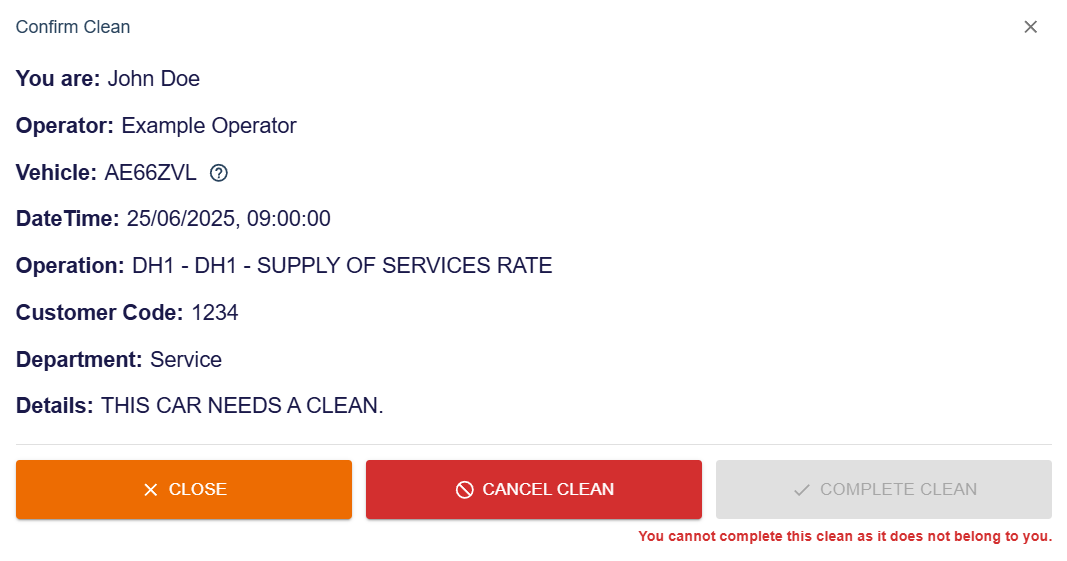
Only the Operator who started the clean can finish it, if a different Operator views it, they will get a slightly different screen.
From this screen you can cancel or complete the clean - or simply close the dialog.
Note: Cleans can only be completed once they have been in progress for atleast 5 minutes.
INFO
Possible error codes:
- The requested clean could not be found, it may have been cancelled or completed already.
- You can not complete this clean as you were not the one who started it.
- You must have the clean in progress for at least 5 minutes before it can be completed.
5 Minute Restriction
Note: The 5 minute restriction does not apply to service washes, these can be completed straight away.
A new checkbox will be visible if the Clean is a Service Wash type, when ticked - the clean will automatically complete instead of going into the In Progress tab. If you do not click this checkbox, you can still complete this clean from the In Progress tab without the 5 minute restriction.

- If you click
Complete CleanorCancel Cleanand it was successful, a confirmation screen will display.
