

Appearance
Roles
Located inside the Setup Portal you will see a menu called Users and a sub-menu called Manage Roles. All permissions and access are managed via roles. There is no limit to how many roles can be created and there also isnt a limit to how many roles a user can be linked too.
Inside the role, you can assign Actions, Applications and Audits. Some actions will give Write access where others will give Read access.
TIP
To maintain a secure environment, please grant only the access necessary to perform the required duties. You can create as many roles as required.
Creating Roles.
- Roles require a
nameand also aUser Typein order to save.

- The next section is
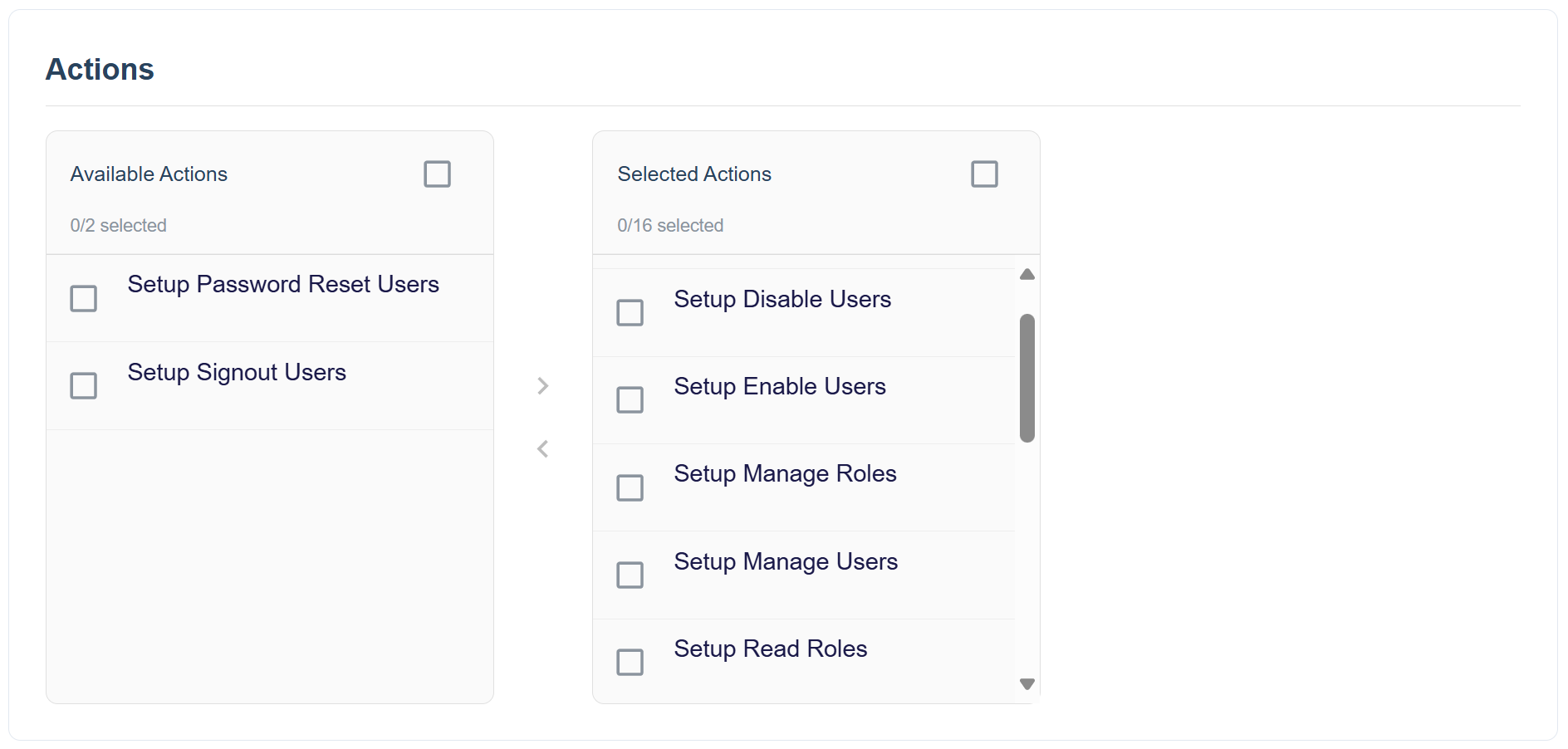
Actions, this is where you will select the relevant permissions. These actions contain a Mix ofREADandMANAGEpermissions. If the action is portal relevevant, it will start with the portal name, i.eTouchscreen XorSetup X.
TIP
You will only see actions relevant to the User Type selected.
TIP
The left side is all the actions that are available, the right side is what is assigned to the role.
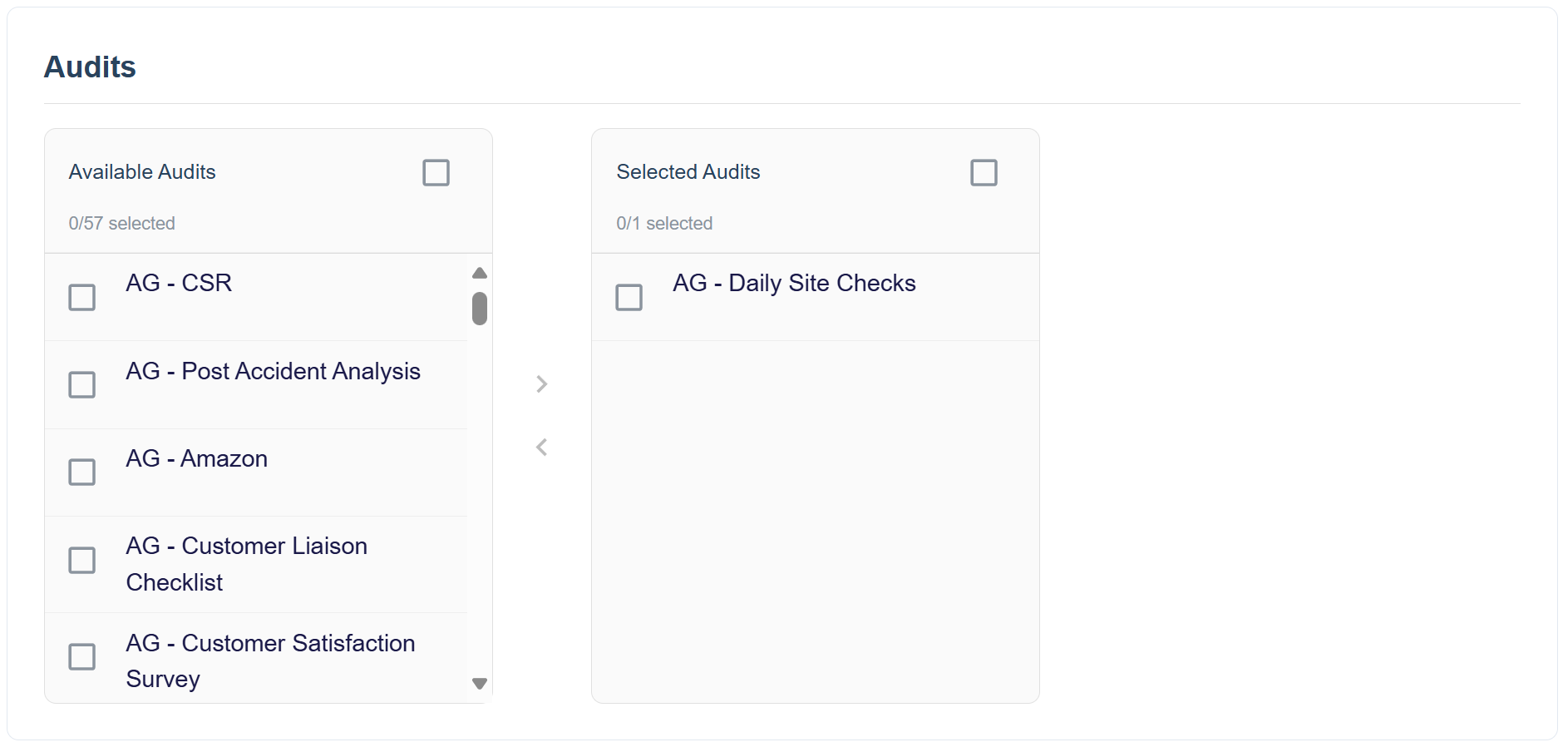
- The next section is where you can link which users to specific audits (if applicable).
TIP
This section only appears if you have the Touchscreen application selected.
TIP
The left side is all the audits that are available, the right side is what is assigned to the role.
- The last stage is where you can select which
Applicationsthat users linked to the role can access.

Read Only
The Manage Roles page supports read and write permissions. Read Only is presented like below:
