

Appearance
Holiday Requests
The Manager Portal allows managers to review, approve, and reject holiday requests submitted by operatives through the Operator Portal. Each request covers a full week and is broken down day by day so decisions can be made individually.
If you do not see Holiday Requests in the sidebar, your role will need ManageHolidayRequests or the read equivalent configured.
Permissions
ManageHolidayRequests- Approve and reject requests. Without this, the page is read-only.
Searching for Requests
Navigate to Manager Portal > Operatives > Holiday Requests from the sidebar.
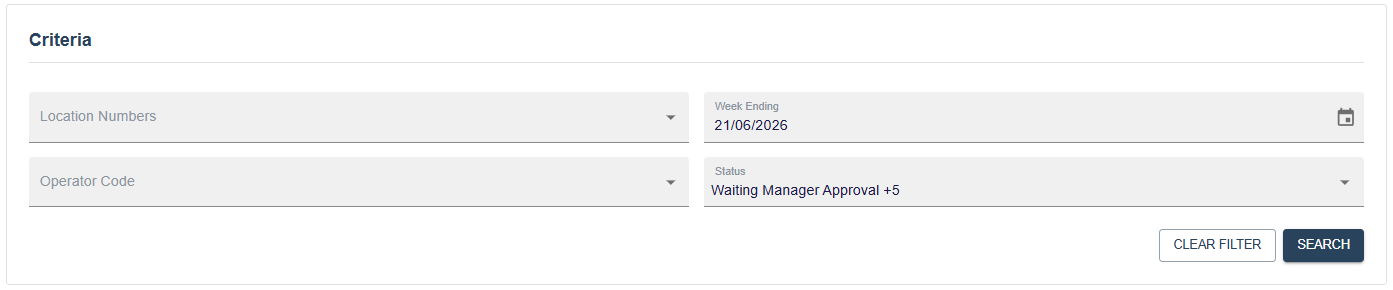
The search form includes the following filters:
Location- Multi-select list of your assigned sites.Week Ending- Filter by the week the request covers.Operator Code- Search for a specific operative.Status- Multi-select. Options areWaiting Manager Approval,Rejected By Manager,Waiting Head Office Approval,Rejected By Head Office,Approved by Head Office, andProcessed.
Enter your criteria and click Search. Results appear in the grid below.

The results grid shows Week Ending, Operator Code, Site Name, Operator Name, Manager Email, and Status for each request.
Click Edit on any row to open that request.
Reviewing a Request
The manage page shows the full details of a single holiday request.
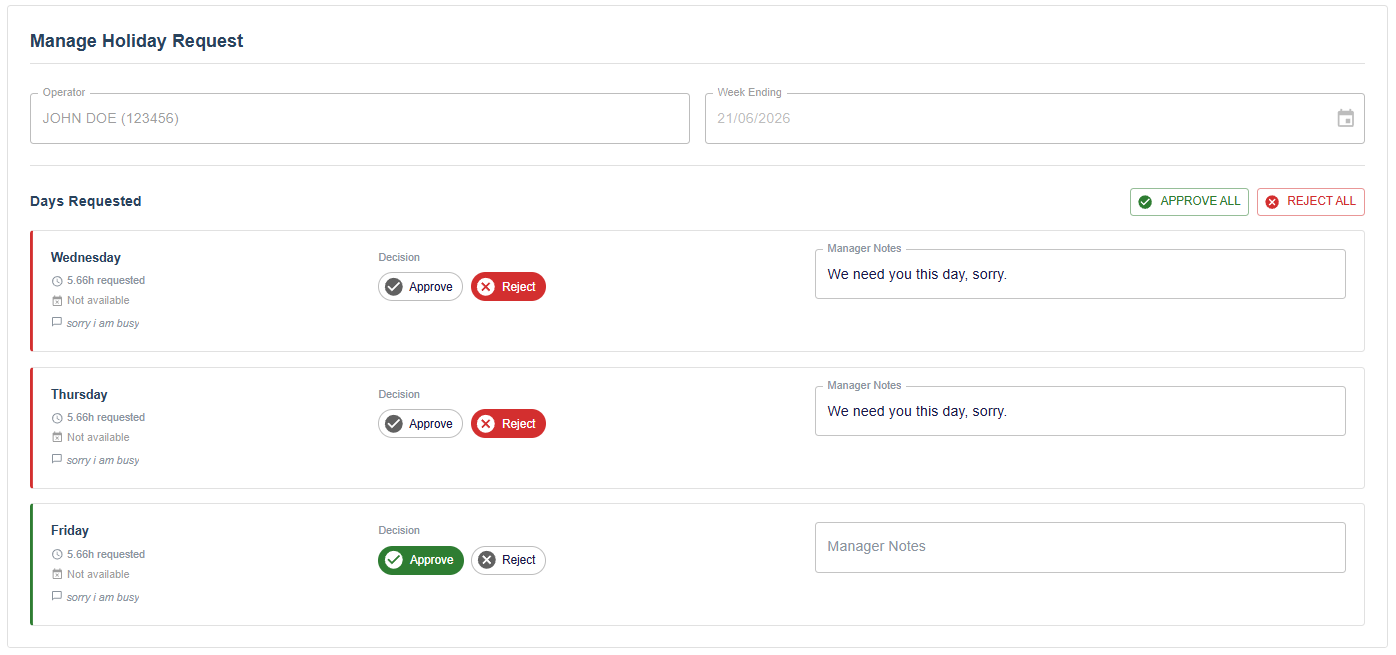
The Operative and Week Ending fields at the top are read-only.
Below that, each day the operative has requested is shown as a card. Each card displays:
- The day of the week.
- The number of hours requested.
- Whether the operative has marked themselves as
Available to Work. - Any notes left by the operative.
ApproveandRejectchips to record your decision.- A
Manager Notesfield for any comments (required when rejecting a day).

TIP
If the operative left notes on a day, a tooltip icon will appear on the card. Hover over it to read their notes.
Approving and Rejecting
You can make decisions day by day by clicking the Approve or Reject chip on each card, or use the Approve All and Reject All buttons at the top to apply the same decision to every day in the request.

WARNING
Manager Notes are required when rejecting any day. The Save button will remain disabled until notes have been entered for each rejected day.
Once you are happy with your decisions, click Save.
After saving, approved days move to Waiting Head Office Approval. Rejected days are marked as Rejected By Manager.
Read-Only Access
If your role does not include ManageHolidayRequests, the approve and reject chips and the Save button will not be shown. A read-only message will be displayed in their place.