

Appearance
iOS – Install as Application
You can install AMS 2.0 directly onto your iPhone or iPad home screen for quick access - just like a normal app.
This makes it faster to open and gives you a fullscreen experience without the Safari address bar.
Note
Once installed, AMS 2.0 will behave like an app - you’ll find it on your home screen, and it will open without Safari.
This guide will show you how to install the website onto your home screen.
Before You Begin
Make sure:
- You are using the Safari browser (this only works in Safari on iPhone or iPad).
Other browsers such as Chrome or Edge cannot install web apps on iOS.
- You are running iOS 16.4 or later for the best experience.
Steps to Install
Open Safari and go to
AMS 2.0website.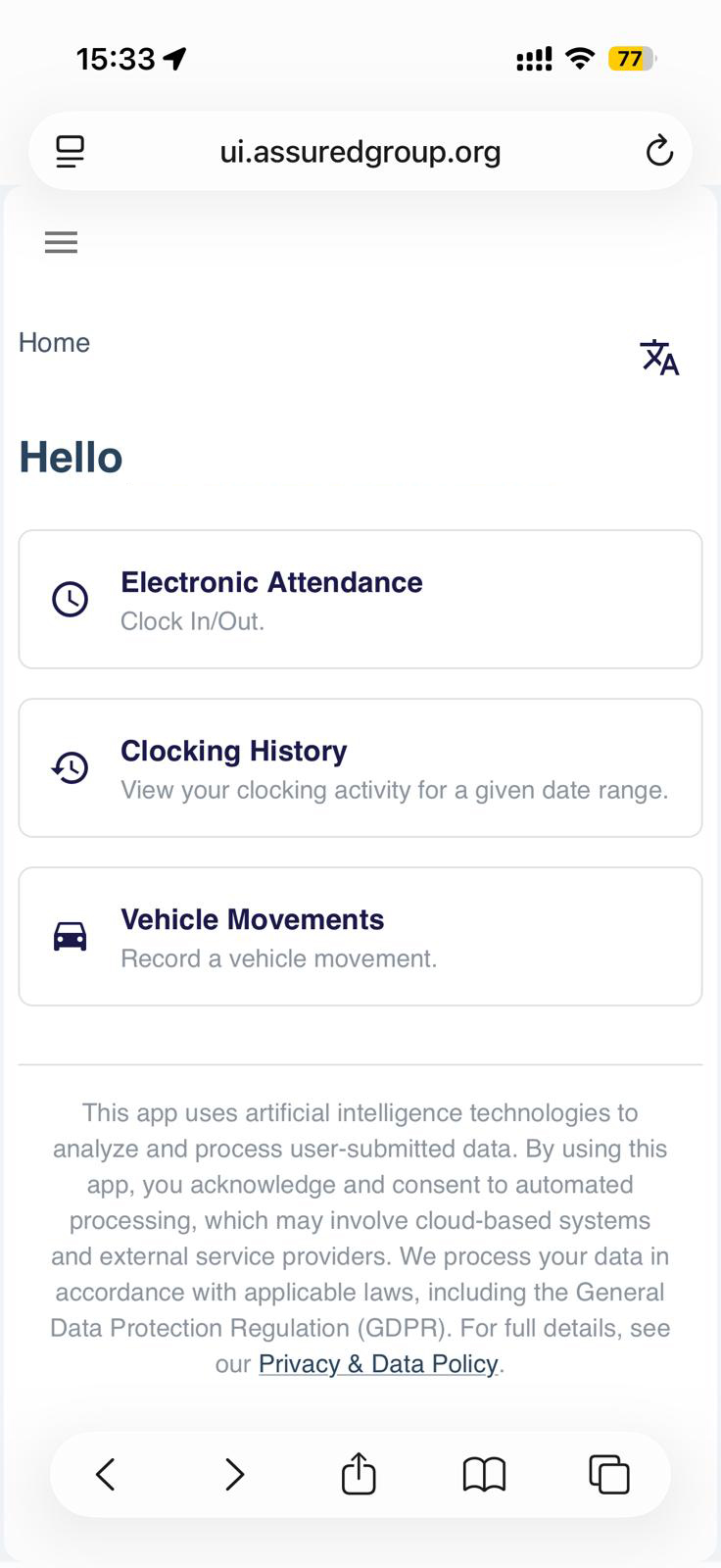
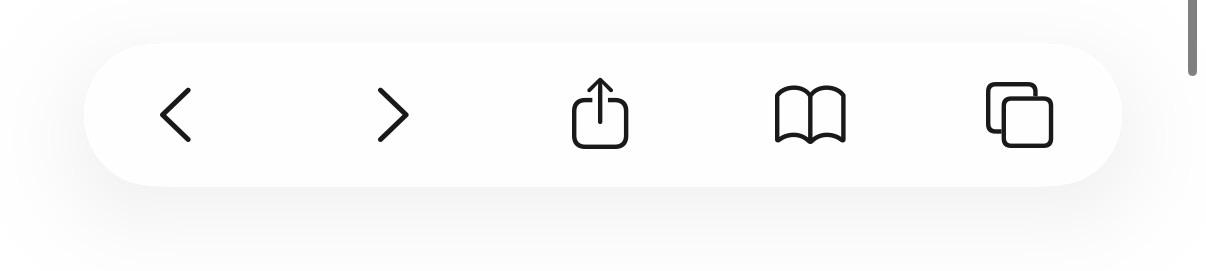
Tap the Share icon (the square with an upward arrow) at the bottom of the screen.
Scroll down and tap Add to Home Screen.
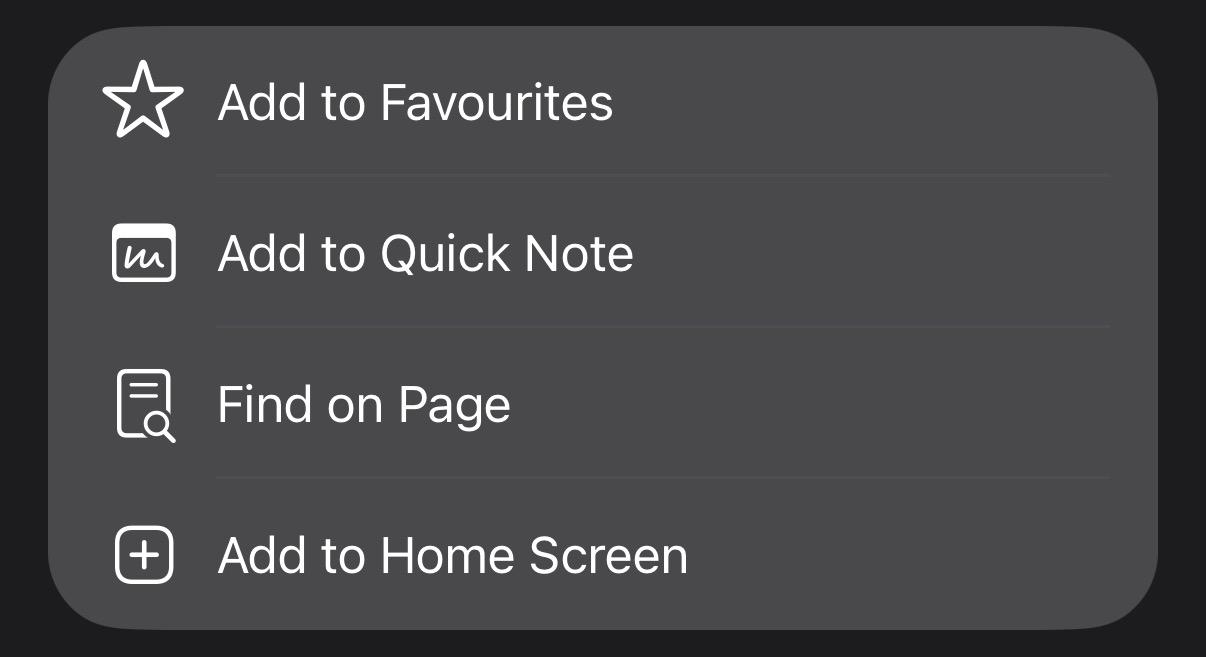
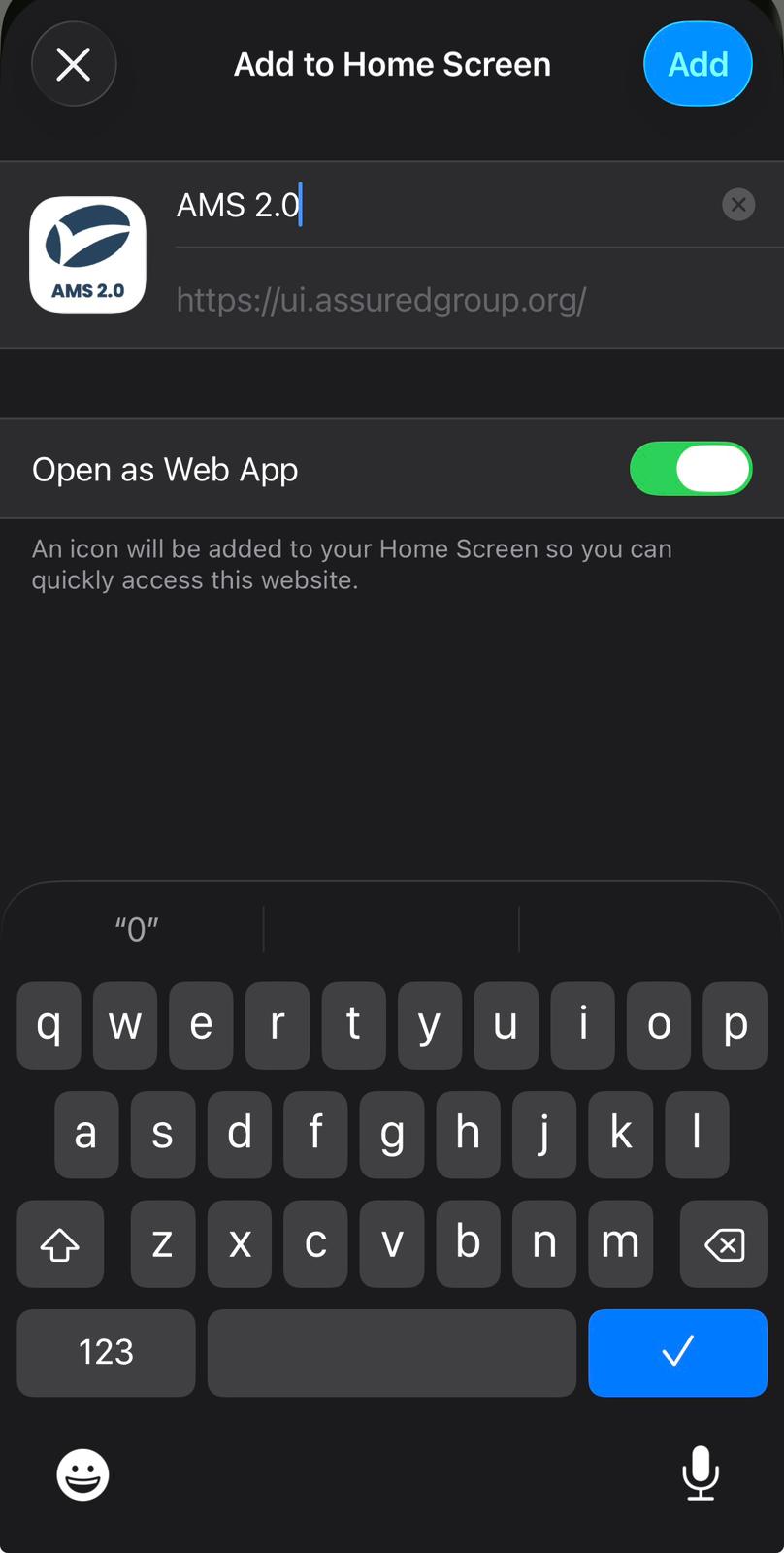
You’ll see a preview of the app icon and name.
You can rename it if you wish - for example,AMS 2.0.Tap Add in the top-right corner.
Using the App
Once added, the icon will appear on your Home Screen like any other app.
Tapping it will open AMS 2.0 in fullscreen mode - without Safari’s address bar.
Login & Data
If you clear Safari browsing data or cookies, you may need to log in again.
The installed app uses Safari’s built-in data storage.
Removing or Reinstalling
To remove the app:
- Long-press the app icon on your Home Screen.
- Tap Remove App → Delete App.
To reinstall, simply revisit AMS 2.0 in Safari and repeat the steps above.